Quick answers
The things people ask about most.
1. Getting started
Try the free demo
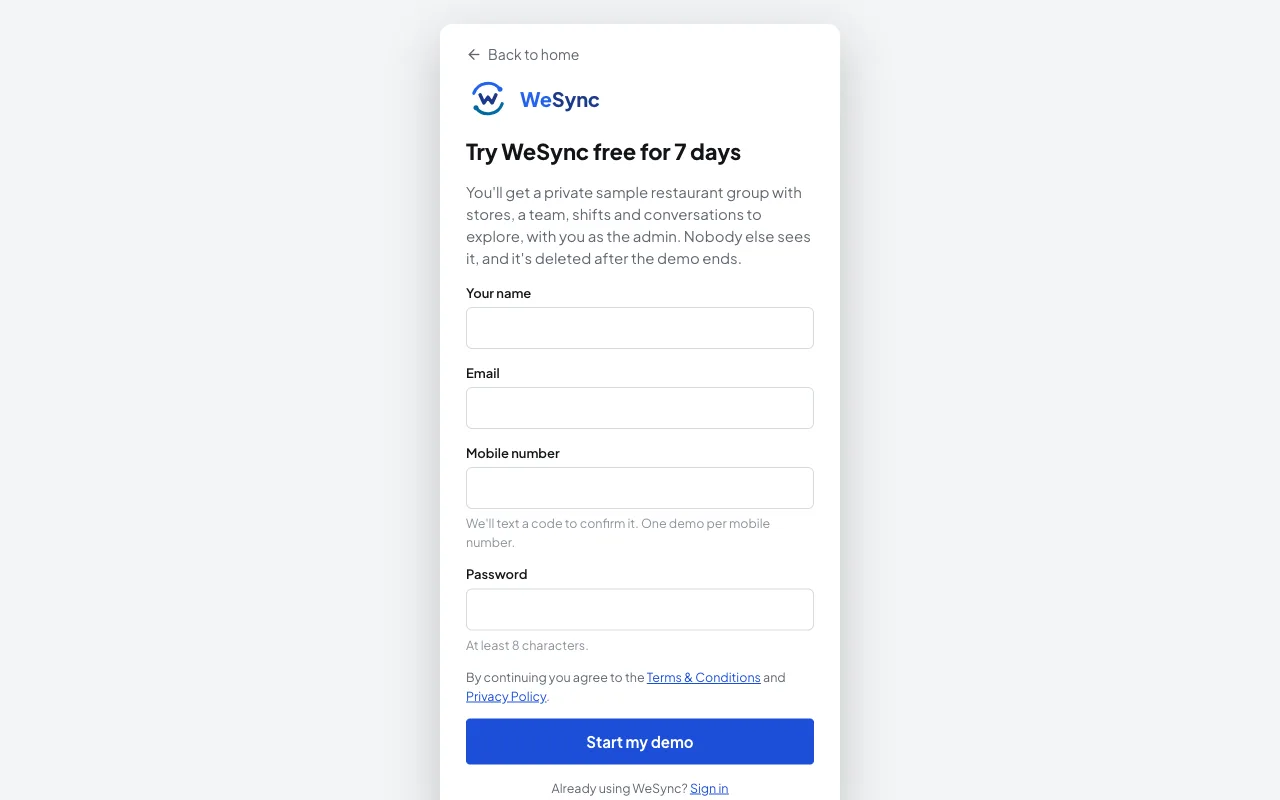
The demo is your own private copy of a sample restaurant group, with stores, a full team, conversations, shifts and files. You're the admin, so you can try everything.
- Go to wesync.info/demo, or choose Start free demo on our home page.
- Enter your name, email, mobile number and a password of at least 8 characters.
- Type the 6-digit code we text you to confirm your number.
- Your demo opens about a minute later. It lasts 7 days, nobody else can see it, and it's deleted when it ends. There's one demo per mobile number.
Sign in for the first time
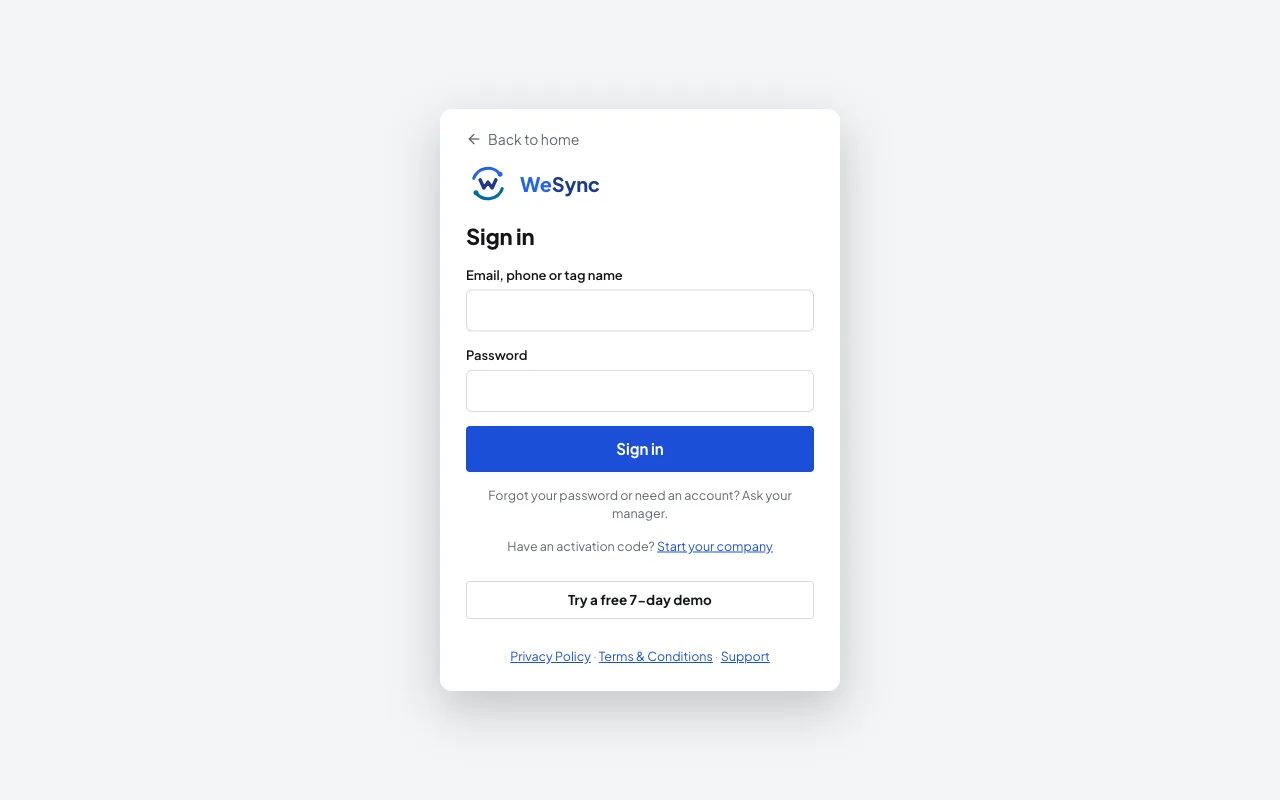
- Your manager adds you. If they added your email address, you get a Welcome to WeSync email. Choose Choose my password in it, pick your password, and you're signed in. The link works once and lasts 7 days.
- No email? Your manager gives you a one-time password instead. Go to wesync.info/signin, type your email, mobile number or tag name (like dana) and the password, then choose your own password.
- Check your profile details.
- Managers and up confirm their mobile number with a texted code. After that, a code is only asked for on a new device.
Emails from WeSync
WeSync sends a few account emails, never marketing. They all come from admin@wesync.info with the WeSync logo at the top. For help, email help@wesync.info or visit our support page.
| When it comes, and what to do | Who gets it | |
|---|---|---|
| Welcome to WeSync | When a manager adds you. Choose Choose my password to set your password. The link works once and expires in 7 days. | New people with an email |
| Sign-in or reset code | A 6-digit code, like "482913 is your WeSync sign-in code". Type it on the code screen. It works once and expires in 10 minutes. | Anyone who asks for one |
| Reset your password | A link to choose a new password, when a code can't be sent. It works once and expires in 1 hour. | Anyone who uses Forgot your password? |
| Your company is ready | When a new company or demo starts, with next steps and a link to sign in. | The first admin |
| Your trial or access ends soon | 7 days and 1 day before a trial or paid time ends, with a link to choose a plan. Not sent if your subscription renews by itself. | Admins |
Codes by email
- When WeSync texts you a sign-in or reset code and it doesn't arrive, choose Email me the code instead on the code screen.
- A code goes to the email address on your profile. The texted code stops working, so use the newest one.
- Type the 6 digits. After 5 wrong tries, start again to get a new code.
2. Find your way around
The dark bar on the left (at the bottom on a phone) takes you to each part of WeSync. A red number means something new is waiting.
| Button | What it opens | Who |
|---|---|---|
| Overview | Every store at a glance, with unread counts and the latest message from each. | Directors, admins |
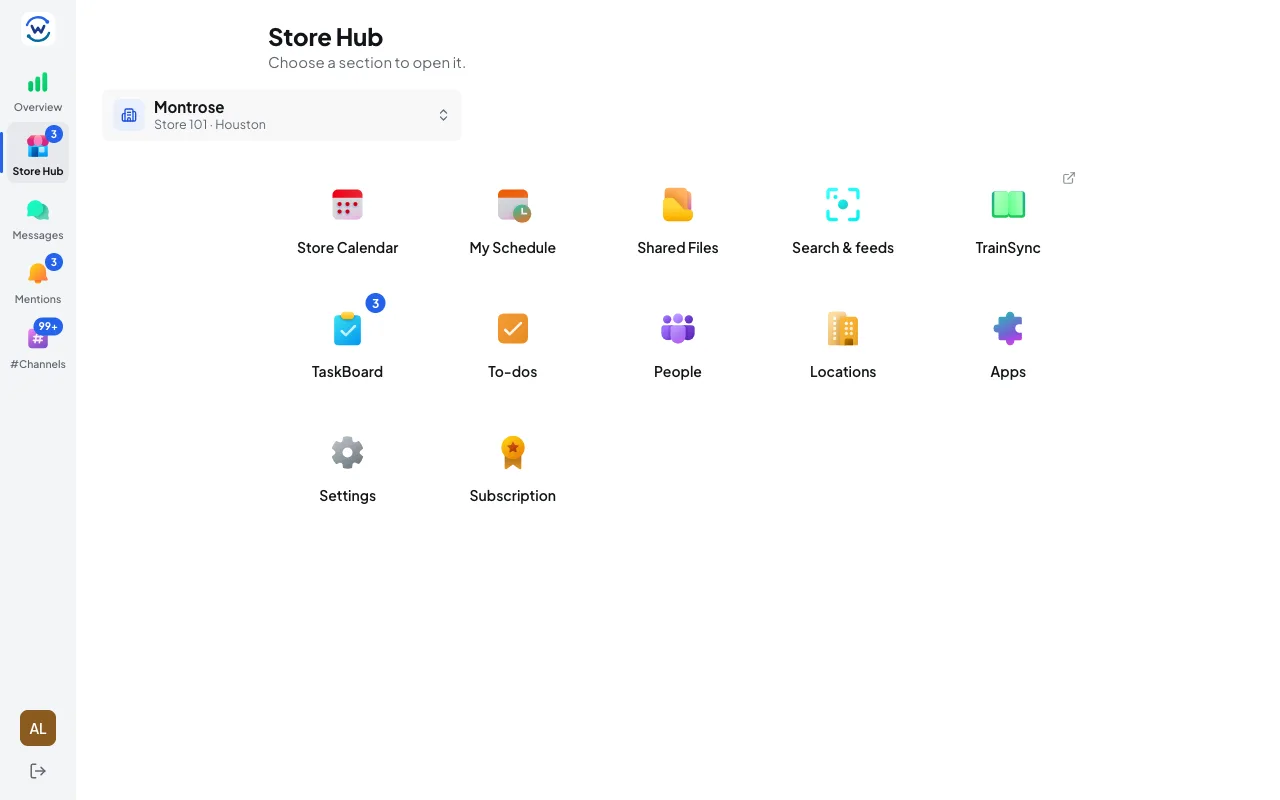
| Store Hub | Your store's home screen: calendar, schedule, files, TaskBoard, to-dos, people and settings. | Everyone |
| Messages | Store groups (All Team, Shift Swaps, team groups) and direct messages. | Everyone |
| Mentions | Every time someone tags you, from anywhere. | Everyone |
| #Channels | Channels for running each store, like #shift-notes and #maintenance. | Managers and up |
| Your picture | Your profile, password, text alerts and sign-in security. | Everyone |
| Arrow at the bottom | Signs you out. | Everyone |
3. Posting, tagging and replies
Posting works the same in #Channels, groups and direct messages.
- Type in the box at the bottom. Press Enter to send, or Shift + Enter for a new line.
- Photos and documents: choose the paperclip, or drag files onto the conversation. You can send up to 10 at a time, 25 MB each.
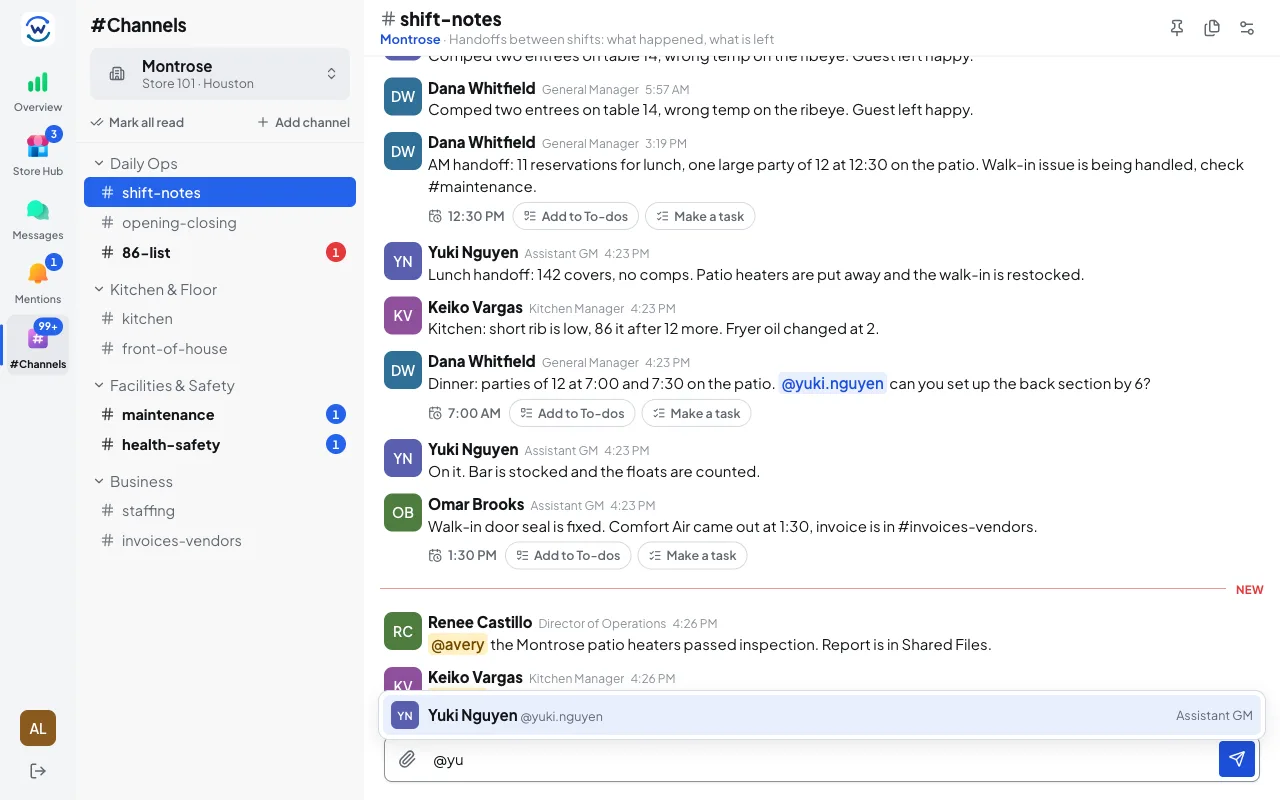
- Tag someone: type @ and start their name, then pick them from the list. They get an alert, and it shows in their Mentions.
- Ask Claude: if your company has added the Claude app, type @Claude and your question. See Apps: Claude.
- Tag everyone: managers and up can type @everyone to alert the whole group.
Message options
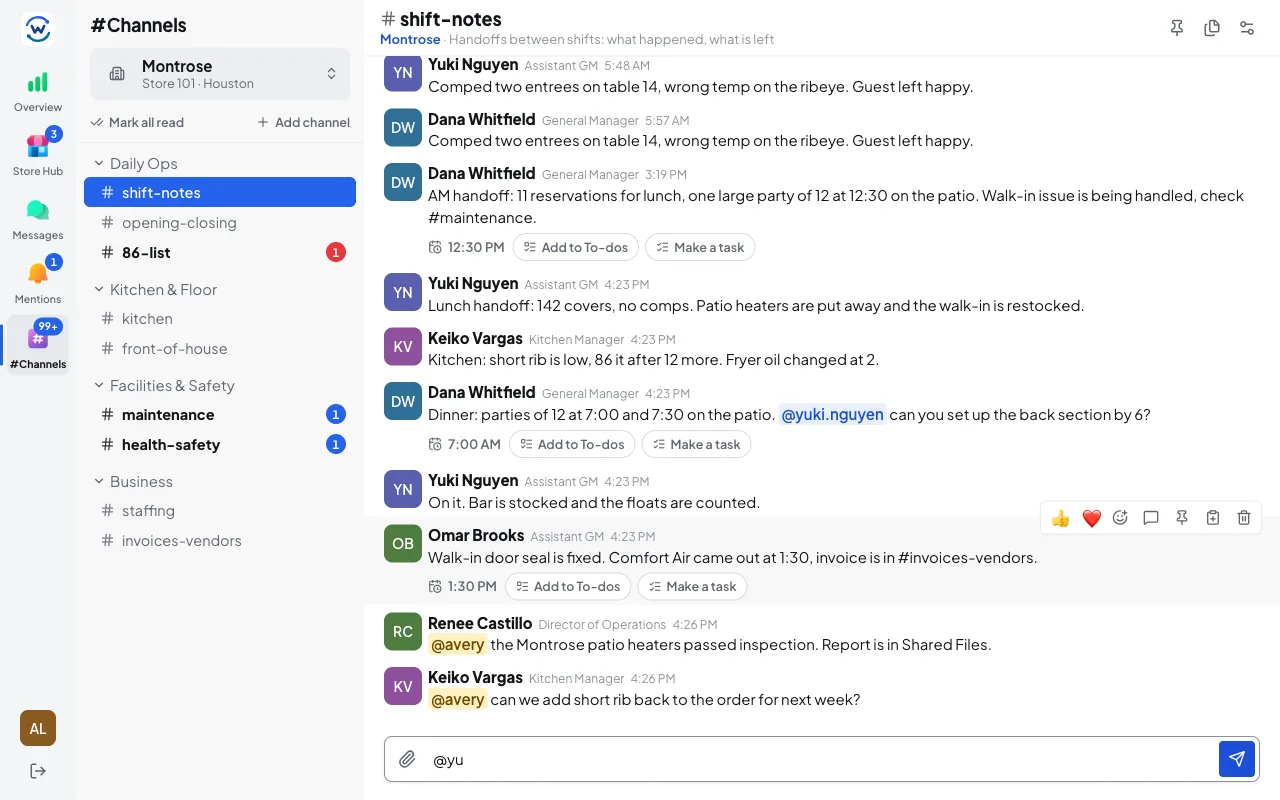
Point at any message (or press and hold on a phone) to see its tools.
| Option | What it does | Who |
|---|---|---|
| 👍 ❤️ and the smiley | React with an emoji. The smiley shows more choices. Choose a reaction again to take it back. | Everyone |
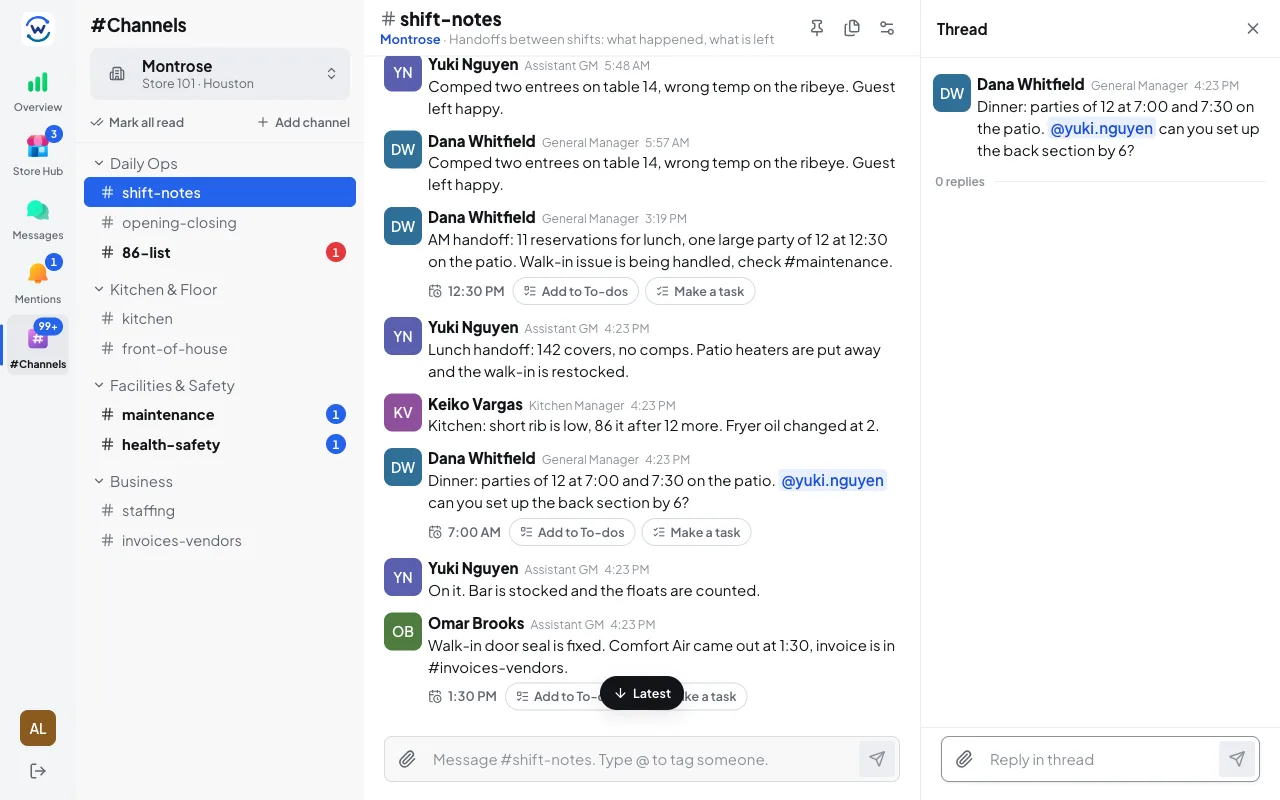
| Reply in thread | In #Channels, opens a thread under the message so a side conversation stays together. | Everyone |
| Reply | In groups and direct messages, quotes the message above your reply. | Everyone |
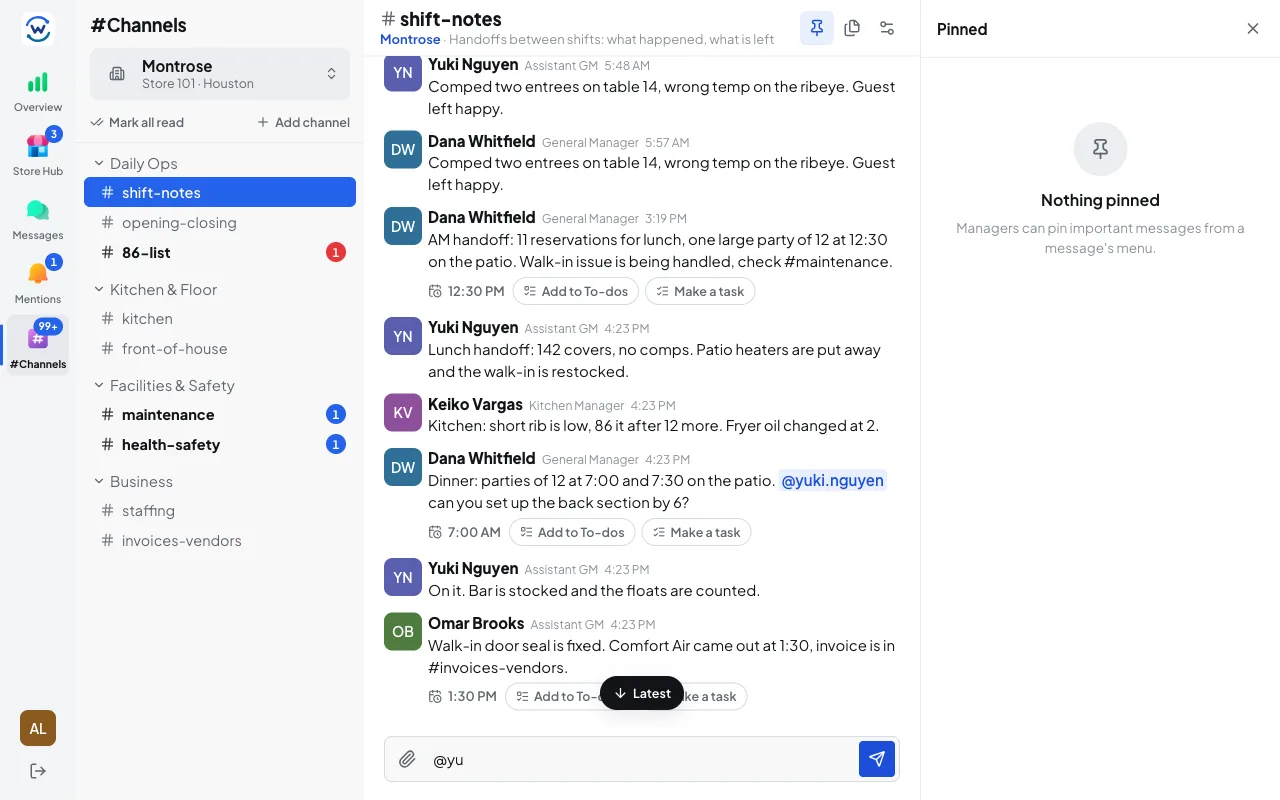
| Pin | Keeps an important post at hand. See pinned posts with the pin button at the top of the channel. | Managers and up |
| Edit (pencil) | Change what you wrote. Press Enter to save or Esc to cancel. | The writer |
| Remove (trash) | Removes the message for everyone, in #channels and groups. When a manager removes someone else's, it's recorded in the activity log. | The writer; managers at that store; directors and admins anywhere |
4. #Channels
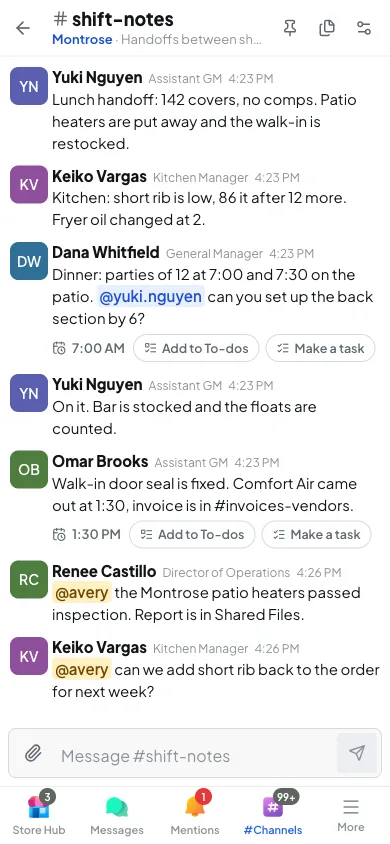
Channels are where managers run each store: shift notes, opening and closing, the 86 list, maintenance, staffing and hiring. Each store has its own set, plus company-wide channels like #announcements.
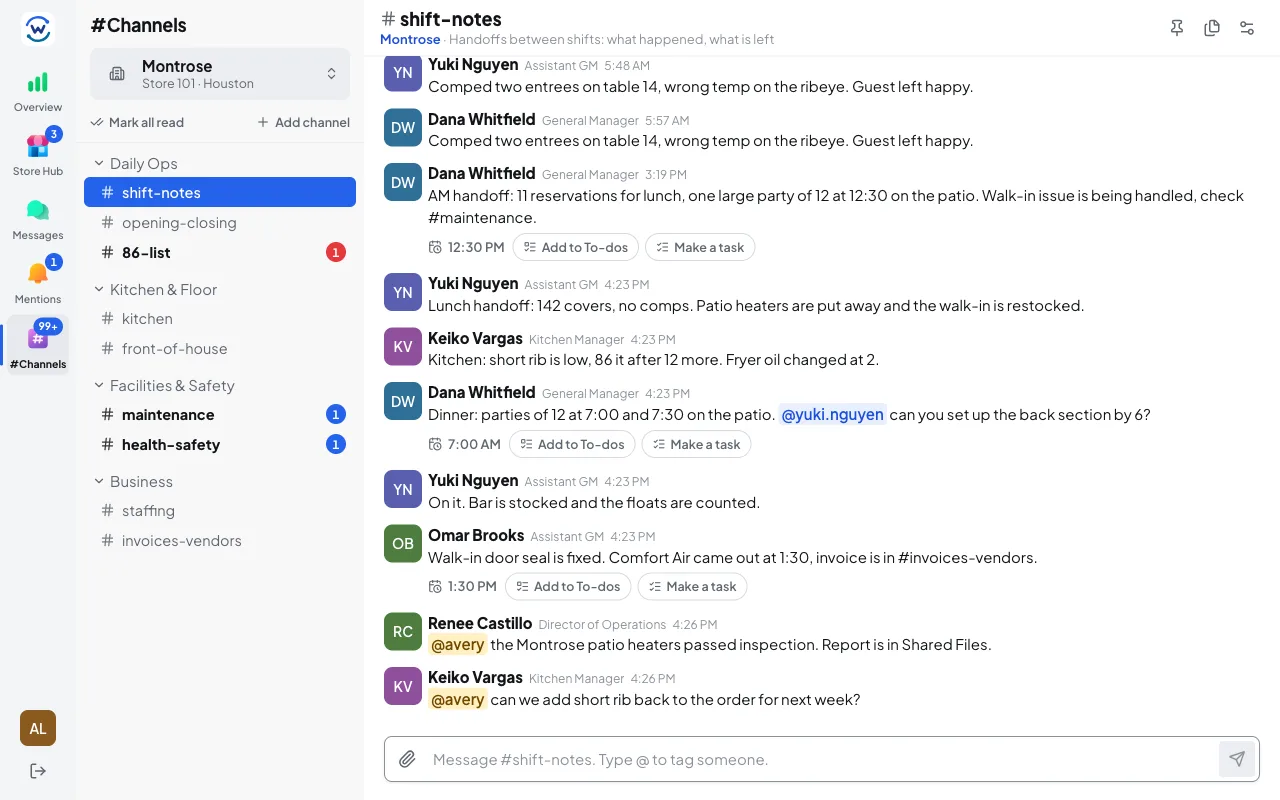
- Choose #Channels on the left, then pick a store from the box at the top of the list.
- Channels are grouped by section, like Daily Ops or Facilities & Safety. Choose the arrow beside a section to fold it away.
- Bold channels have new posts; the number shows how many. Choose one to open it.
- A NEW line marks where you left off.
| Option | Where | Who |
|---|---|---|
| Mark all read | Top of the channel list. Clears every new-post count for that store. | Everyone here |
| Add channel | Top of the channel list. Makes a new channel for that store. | Managers (their stores), directors, admins |
| Pinned messages | Pin button at the top right of a channel. | Everyone here |
| Files in this channel | Pages button at the top right. Opens Shared Files for just this channel. | Everyone here |
| Edit channel | Sliders button at the top right. | Managers (their stores), directors, admins |
Turn a post into a to-do or task
When a post in a channel is something to do, like "Walk-in cooler gets serviced Thursday at 2pm", you can turn it into one of your To-dos or a TaskBoard task without retyping it. Its photos and documents come along too.
- Point at the post (or press and hold on a phone) and choose the checklist button, Add to To-dos or TaskBoard.
- Choose Add to To-dos or Make a task. The window opens filled in: the post's words as the name, a note saying who posted it, where and when, and its photos and files.
- Check the details, then choose Add to-do or Add task.
| Option | What it does | Who |
|---|---|---|
| Date line under a post | When a post mentions a day or time, like "tomorrow at 9" or "Friday", a line under it shows that date with Add to To-dos and Make a task. The reminder or due date is filled in for you. | Managers and up |
| Highlight words | Select just part of a post, and the same two buttons pop up for only those words. | Managers and up |
| Photos and files | Anything attached to the post is added to the new to-do or task. You can take any of them off before saving. | Managers and up |
Channel settings
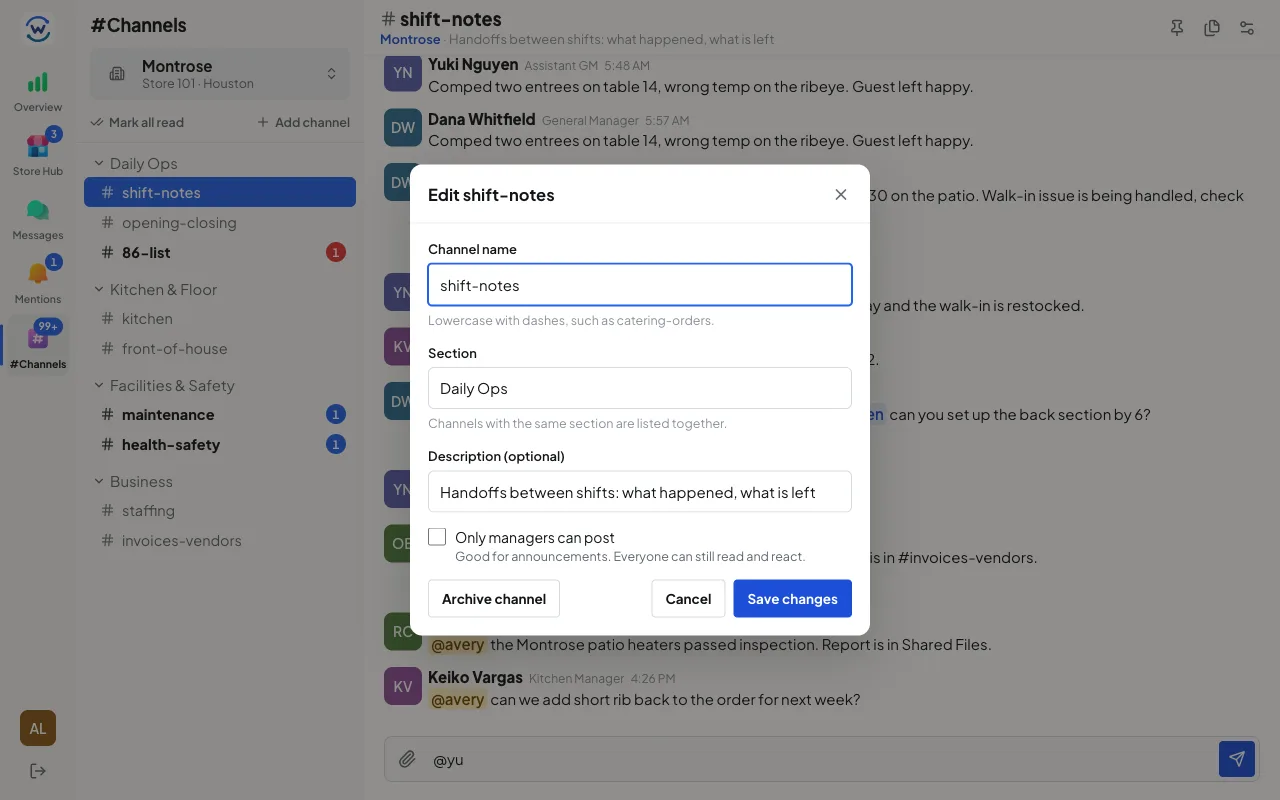
| Setting | What it does | Who |
|---|---|---|
| Channel name | Lowercase with dashes, like catering-orders. | Managers and up |
| Section | Channels with the same section are listed together. Type a new one to start a section. | Managers and up |
| Description | Shown under the channel name. | Managers and up |
| Who can see it | Company channels only: all managers, or directors and admins only. | Directors, admins |
| Only managers can post | Good for announcements. Everyone can still read and react. | Managers and up |
| Archive channel | Hides the channel without deleting it. Use Restore channel to bring it back. | Managers and up |
5. Messages and groups
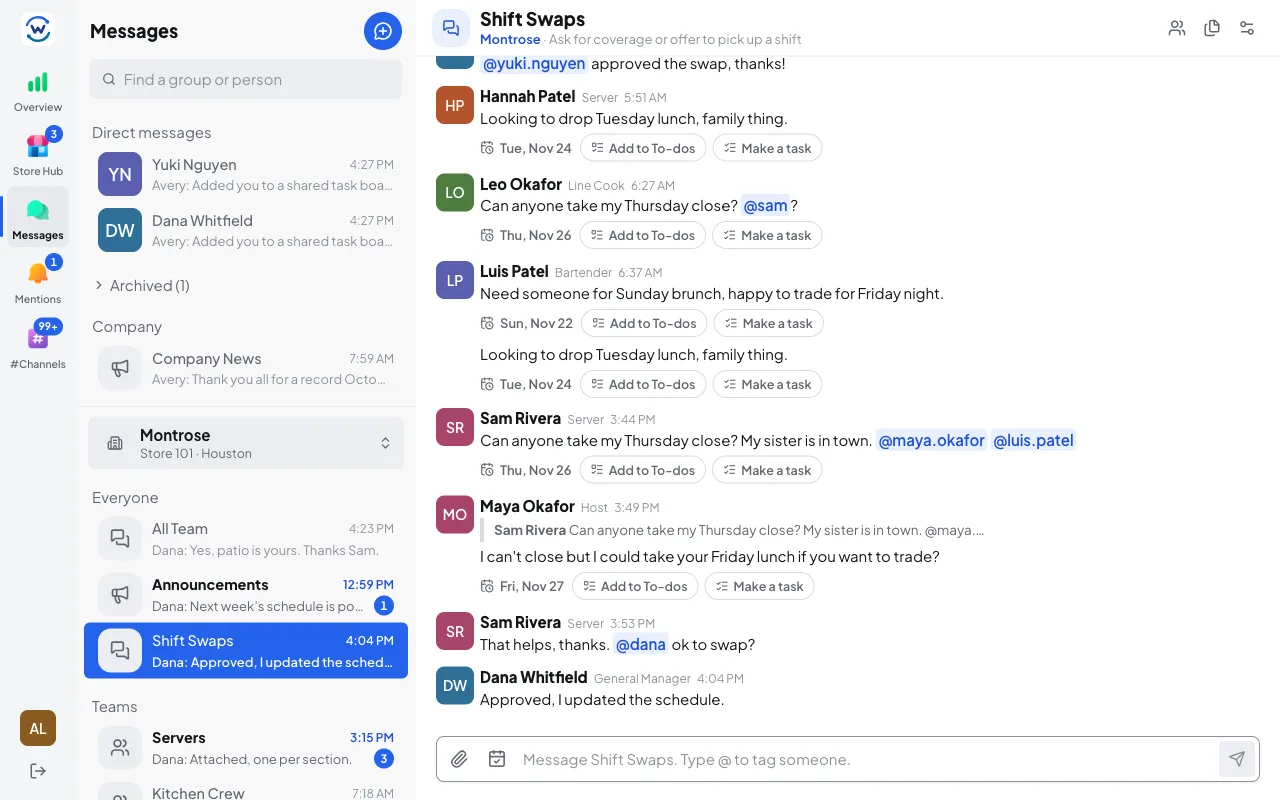
Messages is where the whole team talks: store-wide groups (All Team, Announcements, Shift Swaps), team groups (Servers, Bar, Kitchen Crew), and private direct messages.
- Choose Messages on the left. Direct messages and company groups are at the top; your store's groups are below the store box.
- Pick a store in the box to see its groups. Use Find a group or person to search the list.
- Choose a group or person to open the conversation, then type at the bottom.
Start a direct message or group text
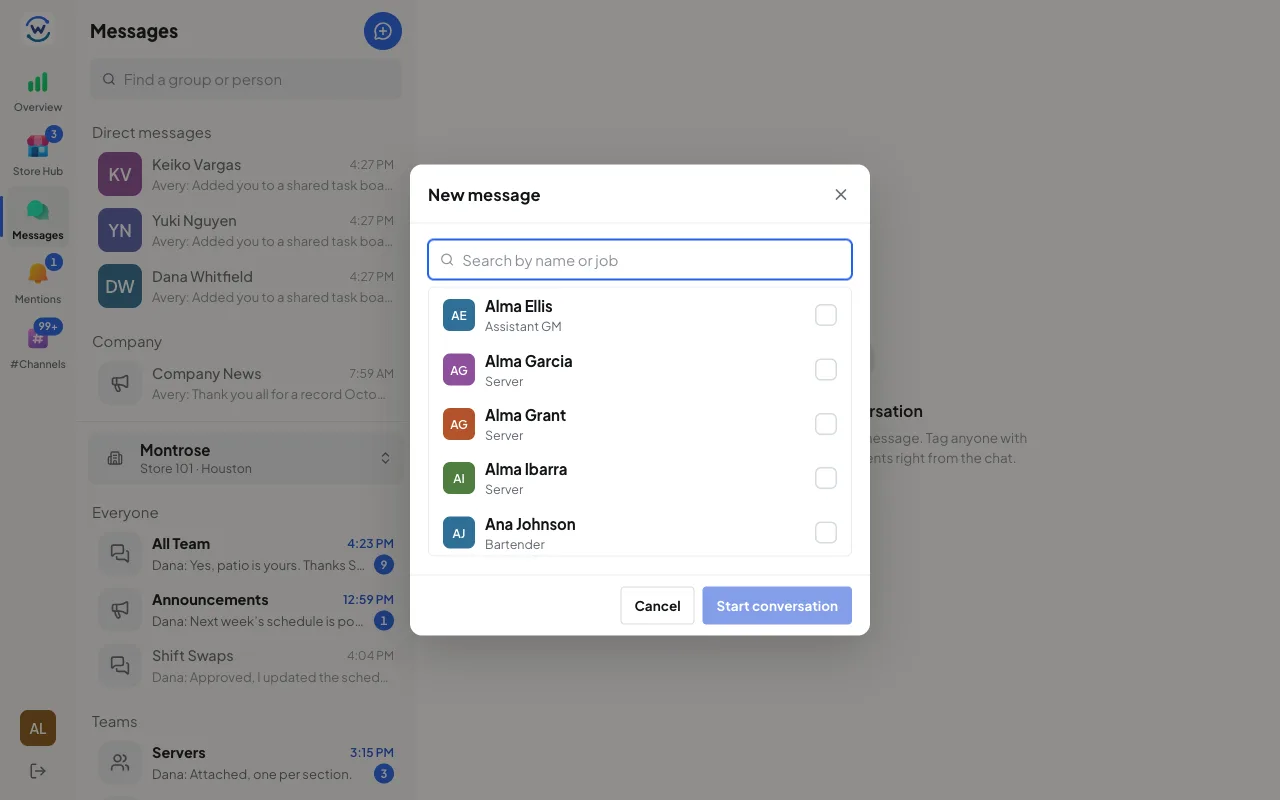
- Choose the green + button at the top of Messages.
- Search for people and tick their names. Pick one person for a direct message, or several for a group text.
- Choose Start conversation. If you already have a conversation with exactly those people, it reopens.
| Option | Where | Who |
|---|---|---|
| People in this conversation | People button at the top right. Shows who's in the group. | Everyone |
| Files in this conversation | Pages button at the top right. | Everyone |
| Edit group | Sliders button at the top right (store groups). | Managers (their stores), directors, admins |
| Add a group | Below a store's groups. | Managers (their stores), directors, admins |
| Leave group | Door button at the top right of a group text. | Anyone in it |
| Archive / Delete for me | Buttons at the top right of a direct message. See below. | Anyone in it |
| Group order and names | Store Hub → Settings → Channel order. | Managers and up |
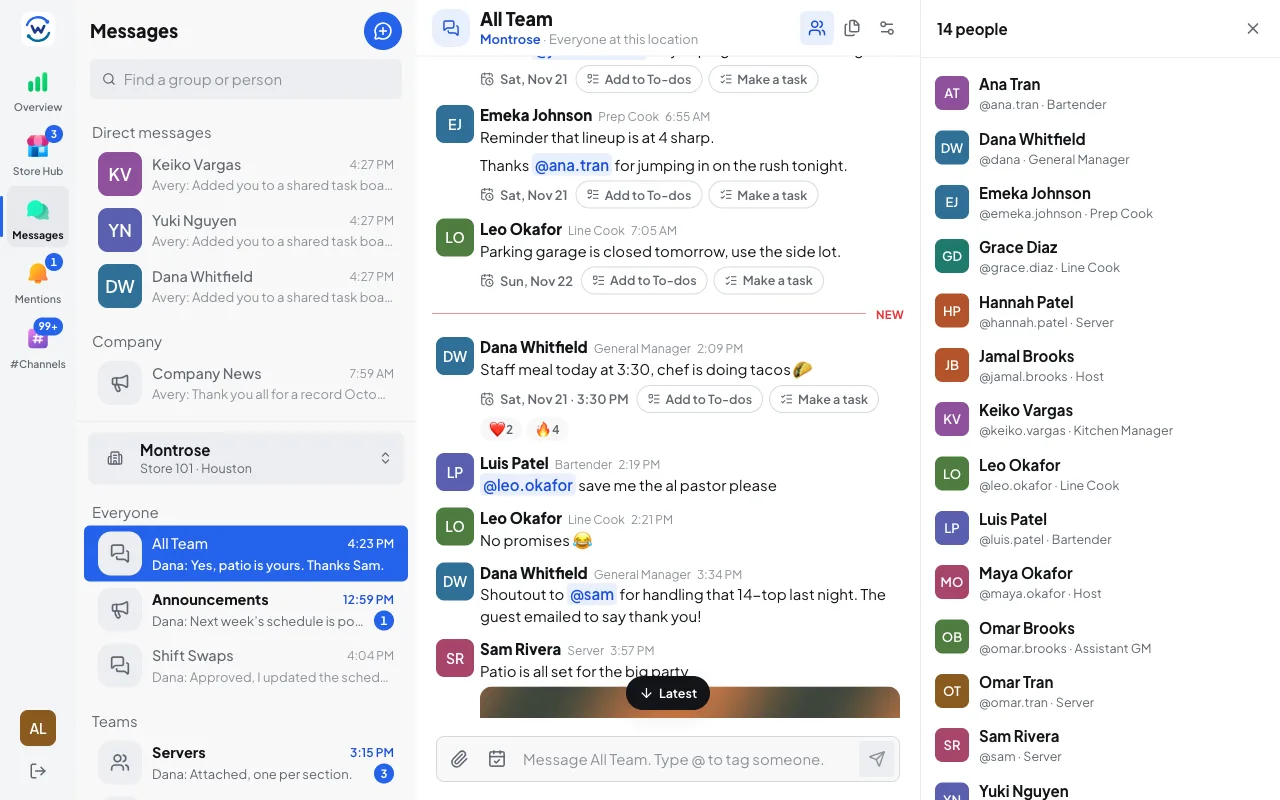
Group settings
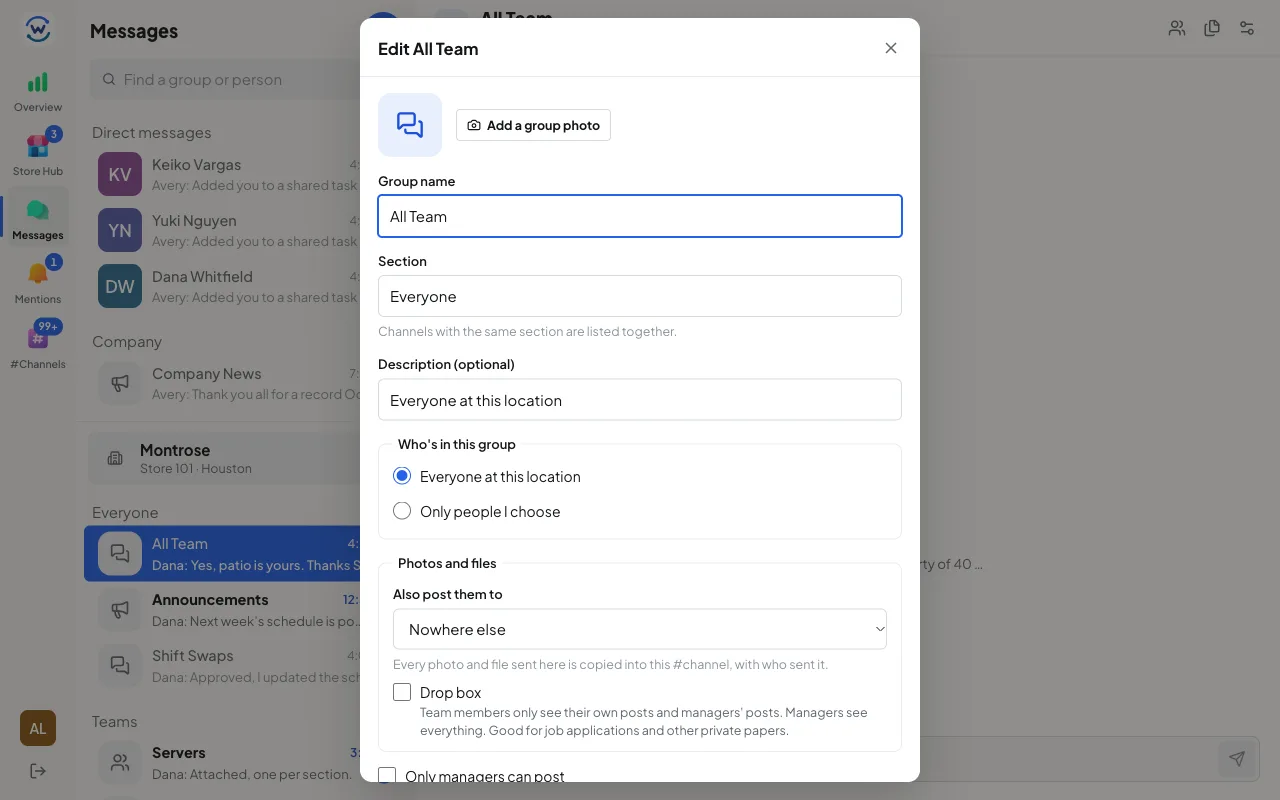
| Setting | What it does | Who |
|---|---|---|
| Group photo | Add a group photo to show it instead of the group icon in Messages. Change or remove it anytime. JPG, PNG or WebP. | Managers and up |
| Group name, section | The name everyone sees, and the heading it's listed under. | Managers and up |
| Who's in this group | Everyone at this location, or Only people I choose (tick names). Managers at the store can always see it. | Managers and up |
| Also post them to | Copies every photo and file sent in the group into a #channel you pick. See below. | Managers and up |
| Drop box | Team members only see their own posts and managers' posts. Managers see everything. Good for job applications and other private papers. | Managers and up |
| Only managers can post | Good for announcements. Everyone can still read and react. | Managers and up |
| Archive group | Hides the group without deleting it. | Managers and up |
Send photos from a group to a #channel
Have photos from the team land where managers work. For example, every photo posted in Kitchen Crew can also go to #maintenance, or every application in an Applications drop box to #applications.
- Open the group in Messages and choose Edit group (sliders button).
- Under Photos and files, pick the channel in Also post them to.
- Choose Save changes. From then on, each photo or file sent in the group is copied into that channel, marked "Forwarded from" the group, with who sent it.
Archive or delete a direct message
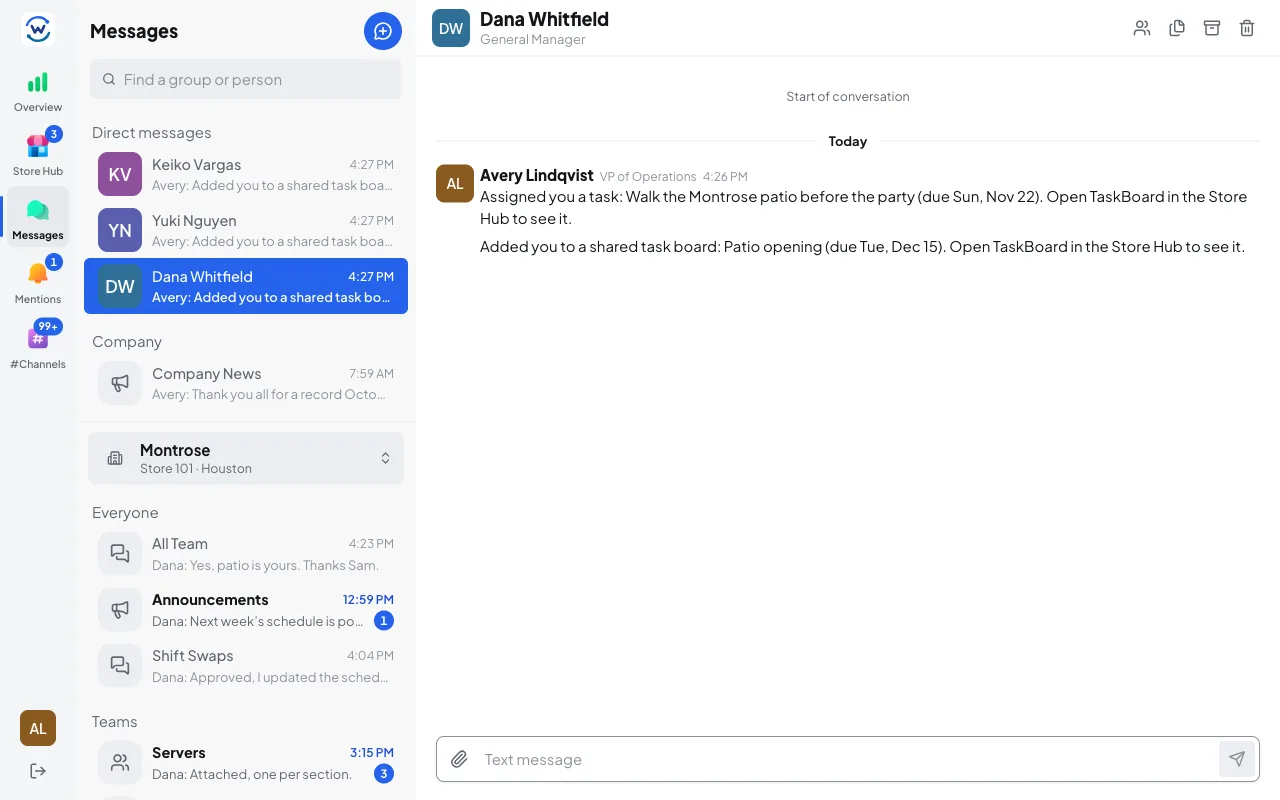
Both only change your Messages. The other person keeps their copy.
| Option | What happens | Who |
|---|---|---|
| Archive | Moves the conversation out of your list, under Archived near the bottom of Direct messages. Nothing is deleted. If someone writes again, it comes back by itself. | Anyone in it |
| Unarchive | Open it from Archived and choose the unarchive button to move it back. | Anyone in it |
| Delete for me | After you confirm, removes the conversation and everything in it so far from your Messages, search, Mentions and Shared Files. If someone writes again, you only see the new messages. | Anyone in it |
6. Shift confirmations
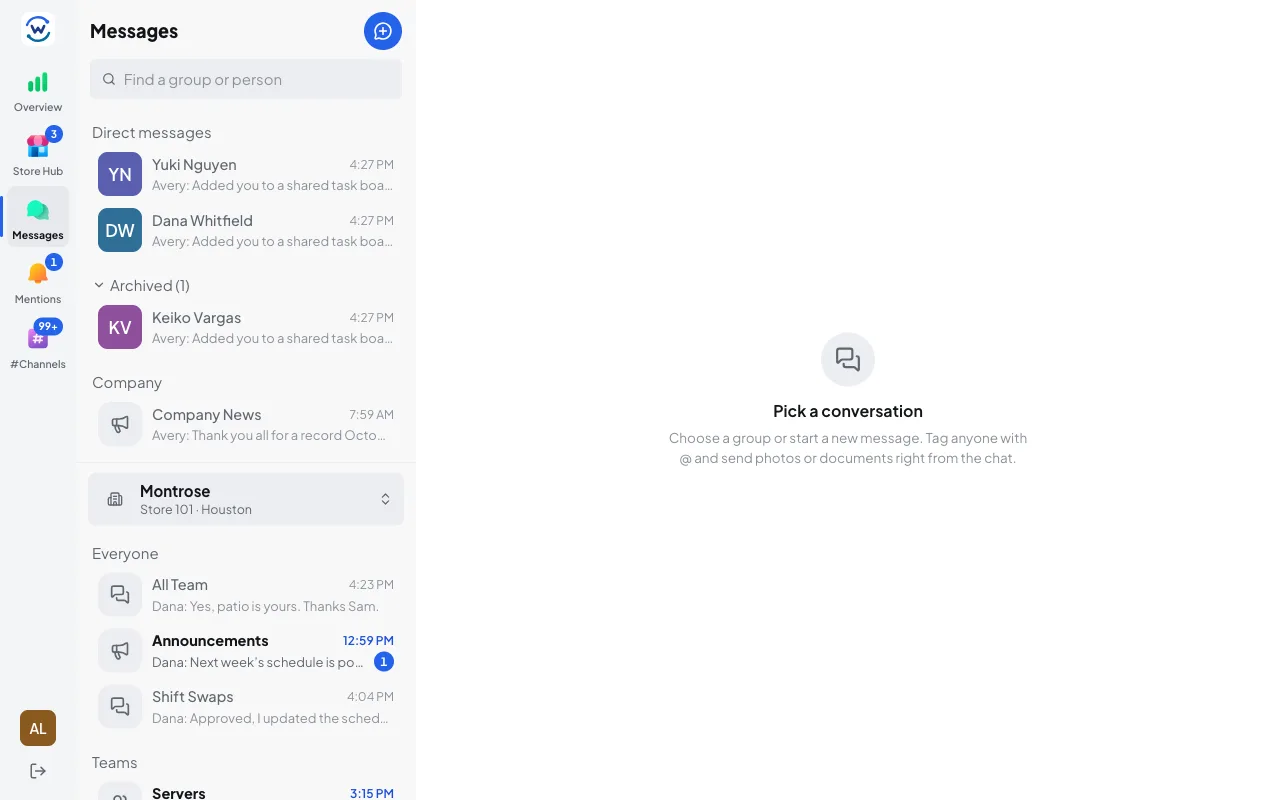
Ask the people on a shift to confirm they'll be there, and see who has answered at a glance.
- Open a store group in Messages, such as All Team.
- Choose the calendar button next to the paperclip in the message box.
- Pick the date, the shift (Lunch, Mid or Dinner), an optional start time and a note.
- Under Who's working, search and tick each person, then send. Each one is tagged.
- Each person taps Confirm or Can't work on the card. The card shows who's confirmed, who can't, and who's still waiting.
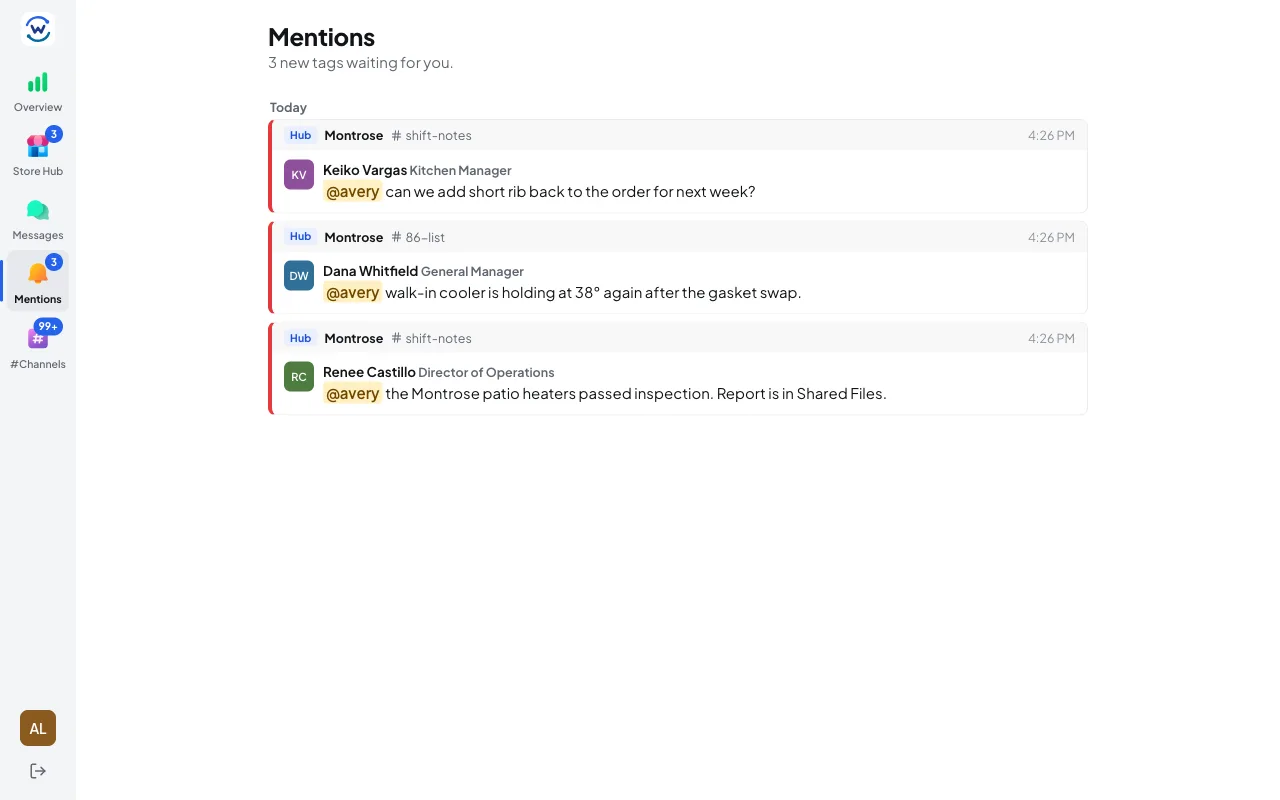
7. Mentions
Every tag, task alert and shift request in one list, newest first, from every store and conversation.
- Choose Mentions on the left. The red number is how many are new.
- Choose one to jump straight to that message in its conversation.
8. Store Hub
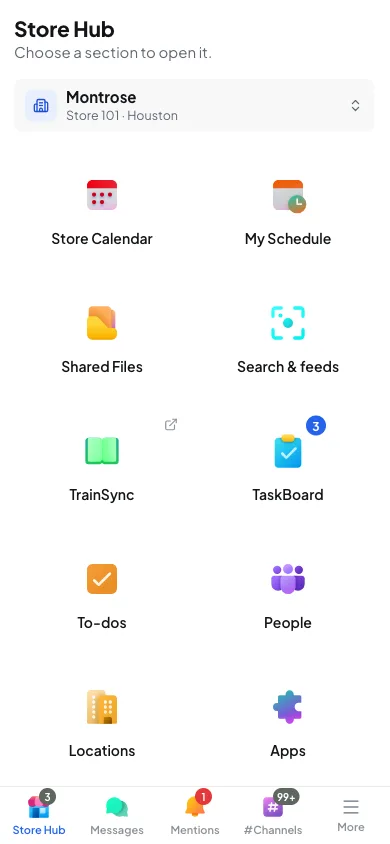
Your store's home screen. Pick a store from the box at the top if you work at more than one, then choose a section. A red number on an icon shows things waiting for you.
| Section | What it's for | Who |
|---|---|---|
| Store Calendar | Events and the dress code, by day. | Everyone |
| My Schedule | Your shifts, plus your own Google or iCloud calendar. | Everyone |
| Shared Files | Every photo and document, plus folders. | Everyone |
| Search | Find any message. Leaders get feeds across stores. | Everyone |
| TrainSync | Opens your training site. | Everyone |
| TaskBoard | Tasks and shared boards. | Managers and up |
| To-dos | Your own list with reminders. | Managers and up |
| People / My team | Add and manage people. | Managers and up |
| Locations / Activity log | Stores and regions (admins); a record of changes (directors). | Directors, admins |
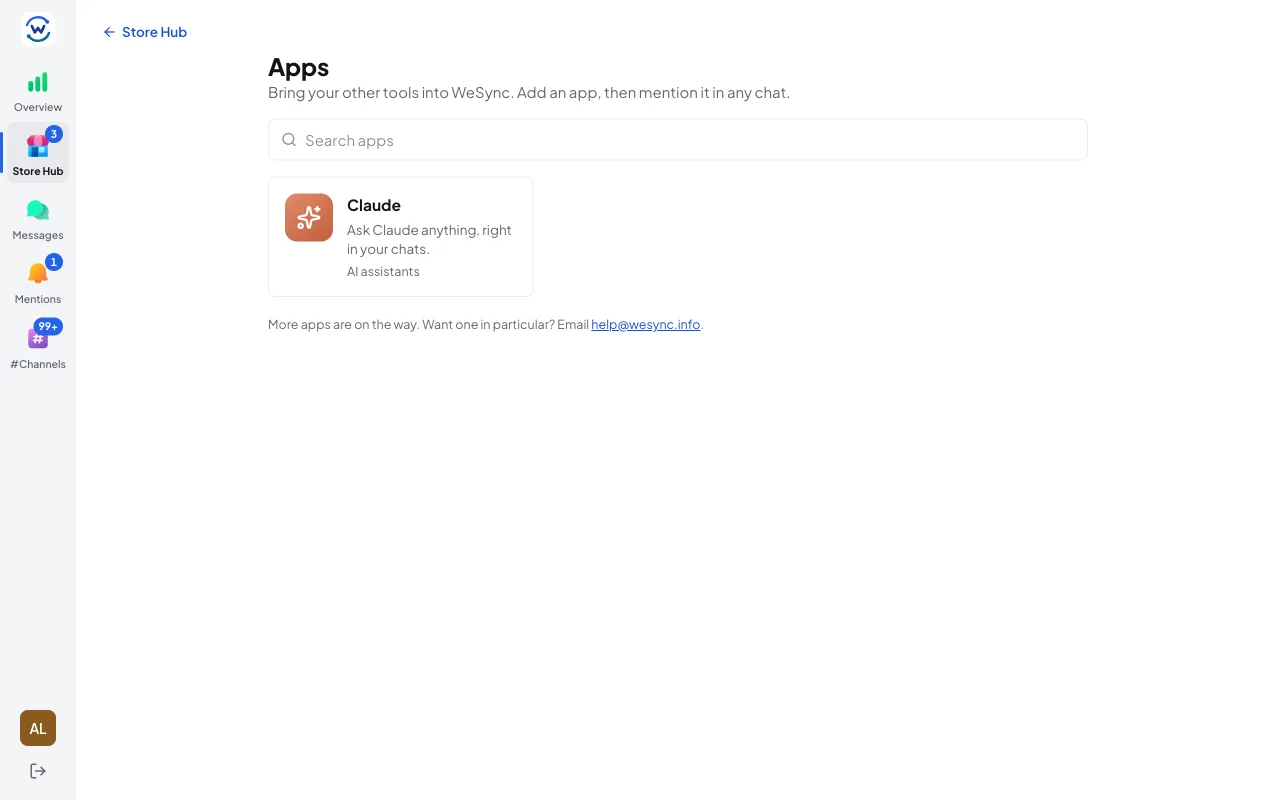
| Apps | Apps that work inside WeSync, like Claude. Admins add them; everyone can see what's added. | Everyone (admins add apps) |
| Settings | Appearance, badges, and the order of groups. | Everyone |
| Subscription | Your plan, billing and activation codes. | Admins |
Apps: Claude
Apps add helpers that work right inside your chats. The first is Claude, the AI assistant made by Anthropic. Mention @Claude in a channel, group or direct message and Claude reads that conversation, then answers in it. It can sum up a long thread, draft a post or reminder for the team, write a checklist, or answer a question.
Add Claude (admins)
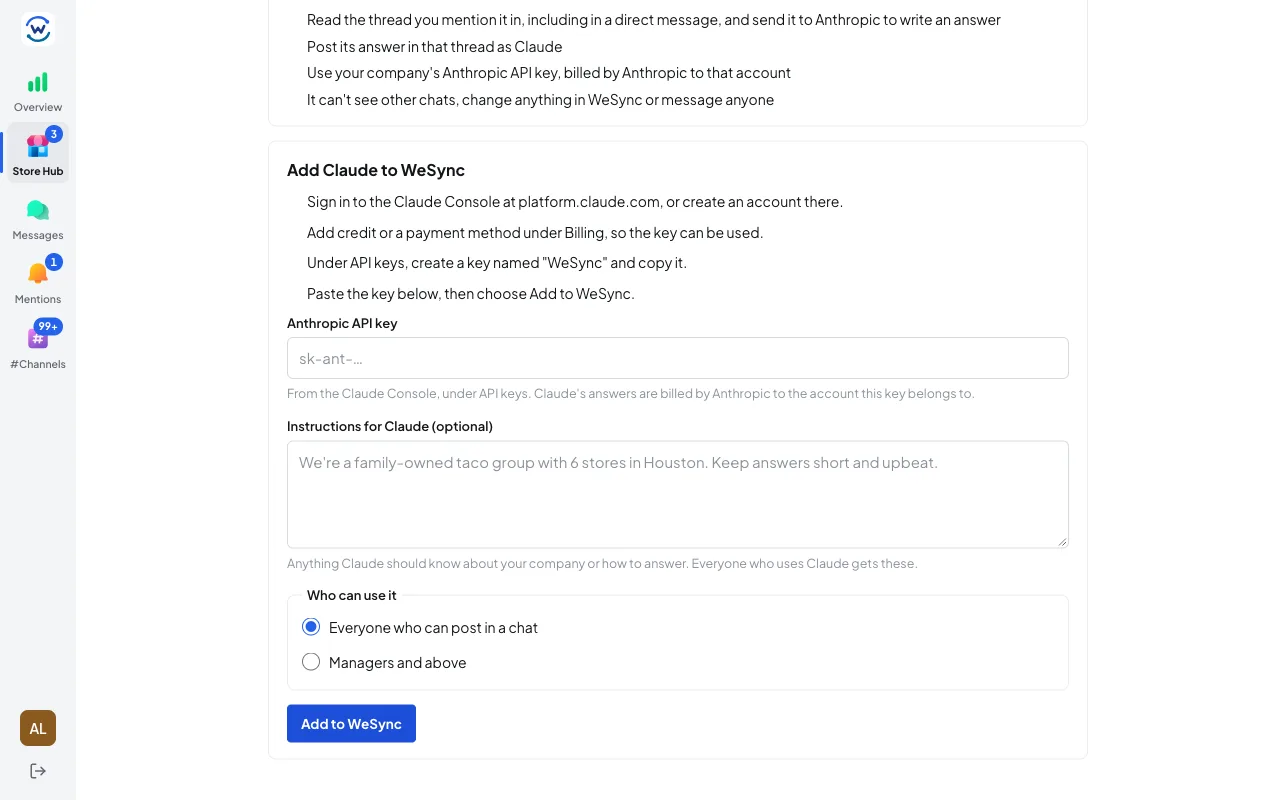
- Get an Anthropic API key: sign in or sign up at platform.claude.com, add credit or a payment method under Billing, then under API keys create a key named "WeSync" and copy it. Claude's answers are billed by Anthropic to that account, not by WeSync.
- In Store Hub, choose Apps, then Claude.
- Paste the key. WeSync checks it with Anthropic before saving it, and tells you if it doesn't work.
- Add Instructions for Claude if you like, such as "We're a family-owned taco group with 6 stores in Houston. Keep answers short and upbeat."
- Choose who can use it: Everyone who can post in a chat, or Managers and above. Then choose Add to WeSync.
Ask Claude
- In any conversation, type @ and pick Claude from the list, or type @Claude, then your question. For example: @Claude summarize this thread.
- Claude answers a few seconds later as a reply in that thread, labeled Claude · App and "for" the person who asked.
- To keep going, mention @Claude again in the same thread, like @Claude make that shorter. Claude remembers what was said in that thread.
| Option | What it does | Who |
|---|---|---|
| Who can use it | Everyone, or managers and up. Others who mention Claude get a note saying it's for managers. | Admins |
| Instructions for Claude | Background Claude uses for every answer in your company, up to 2,000 characters. | Admins |
| Change the key | Paste a new key and save. Leave it blank to keep the one in use; the page shows its last 4 characters. | Admins |
| Remove | Turns Claude off and forgets the key. Answers it already gave stay in the chats. | Admins |
9. Store Calendar and My Schedule
Store Calendar
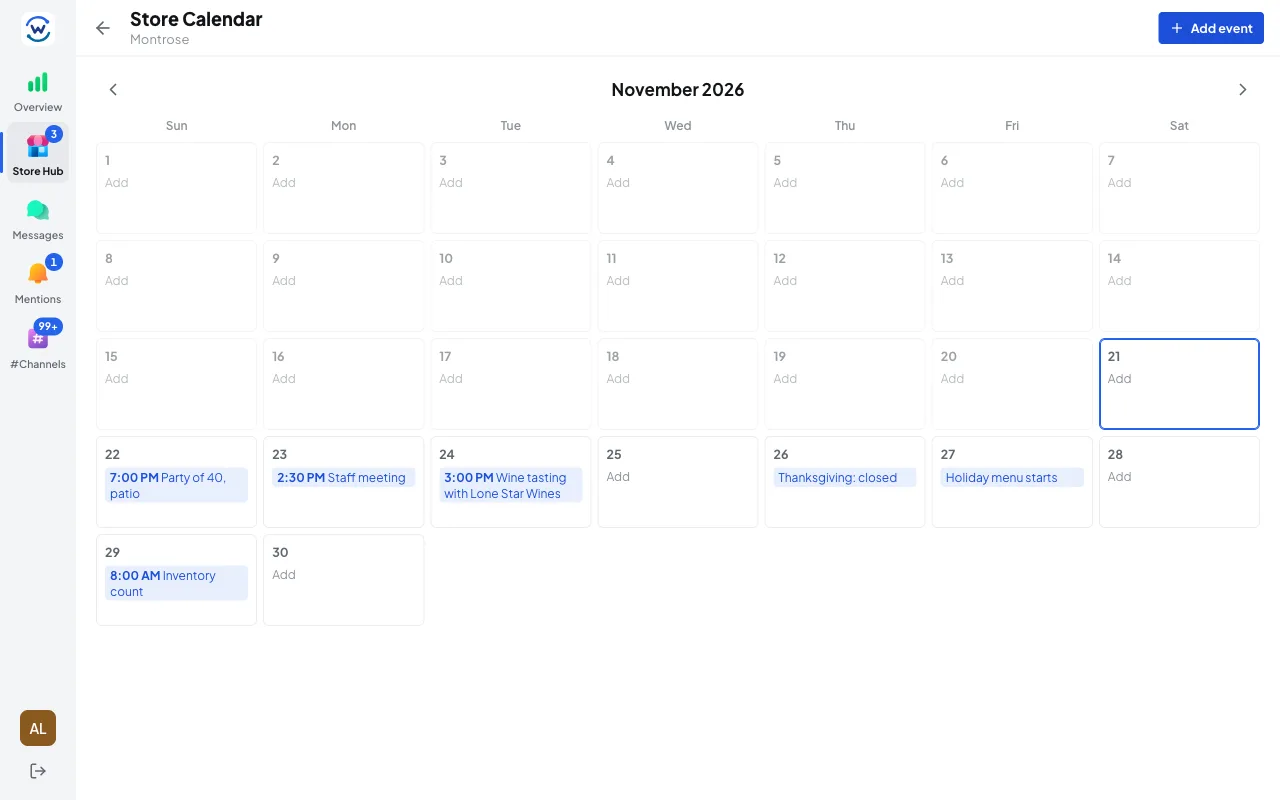
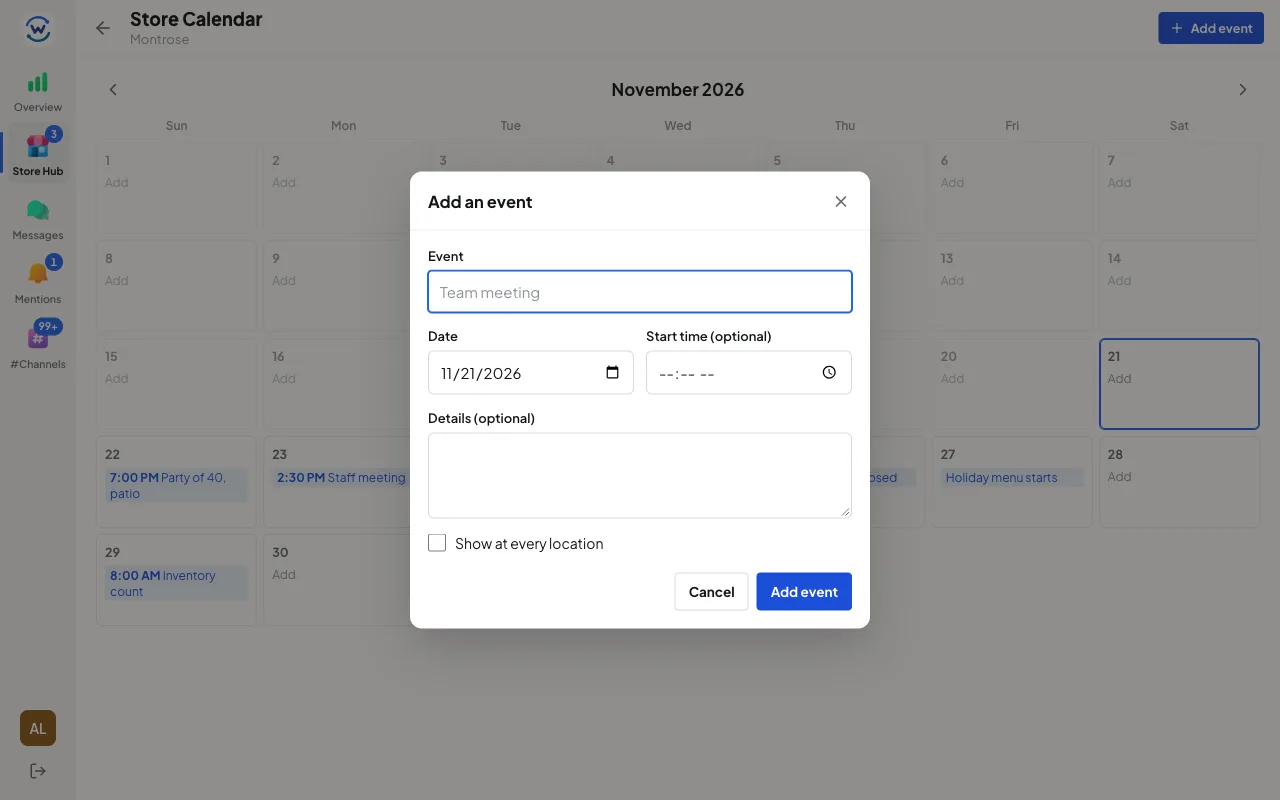
- In Store Hub, choose Store Calendar. Use the arrows to change months.
- Add an event (managers): choose Add event. Enter the event, date, an optional start time and details.
- Set the dress code (managers): choose a day, then type the dress for that day, like "Black uniform, red cap".
- Choose any day to see everything on it. Managers can edit or remove events there with the pencil and trash buttons.
My Schedule
- In Store Hub, choose My Schedule to see the shifts you're on. The red number on its icon is your shifts today.
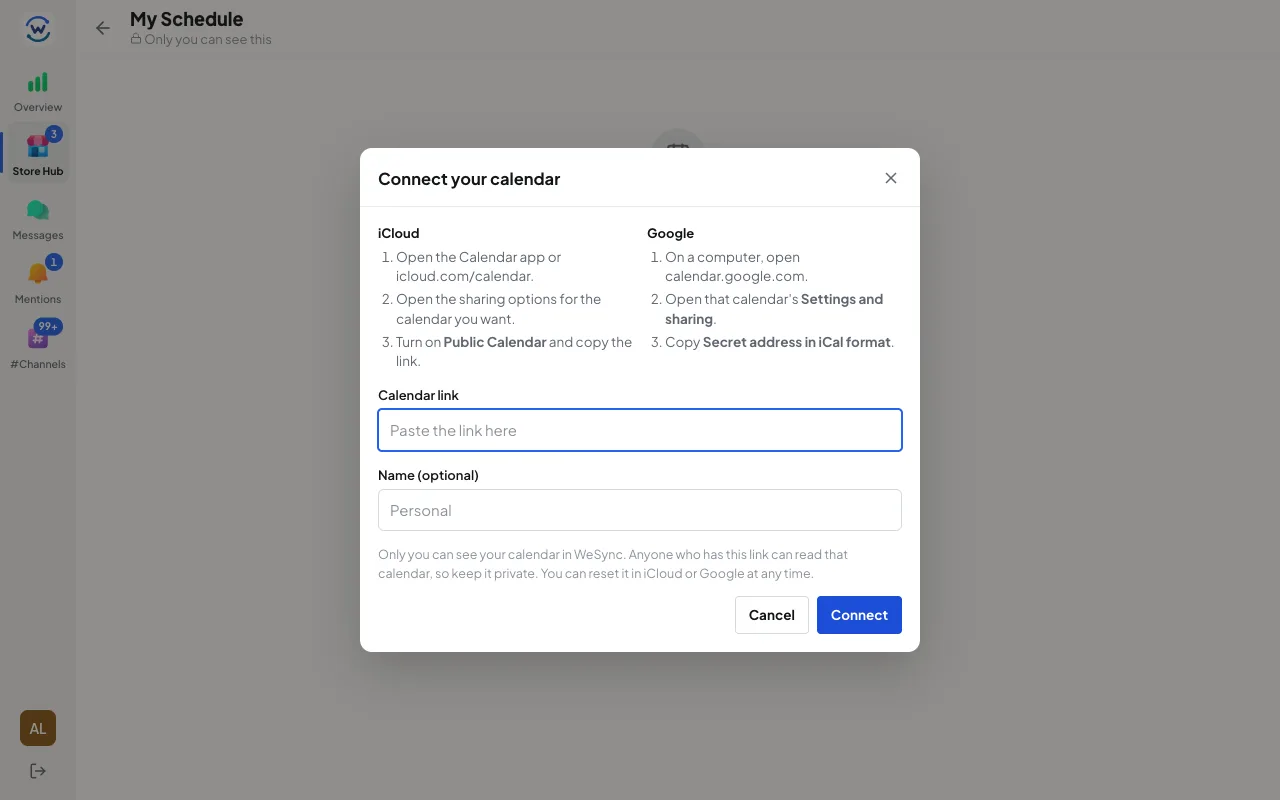
- Choose Connect your calendar to show your own Google or iCloud calendar next to your shifts. Only you see it.
- Follow the steps in the window to copy your calendar's private link, paste it under Calendar link, give it a name, and choose Connect.
- Choose Disconnect to remove a calendar.
10. Shared Files
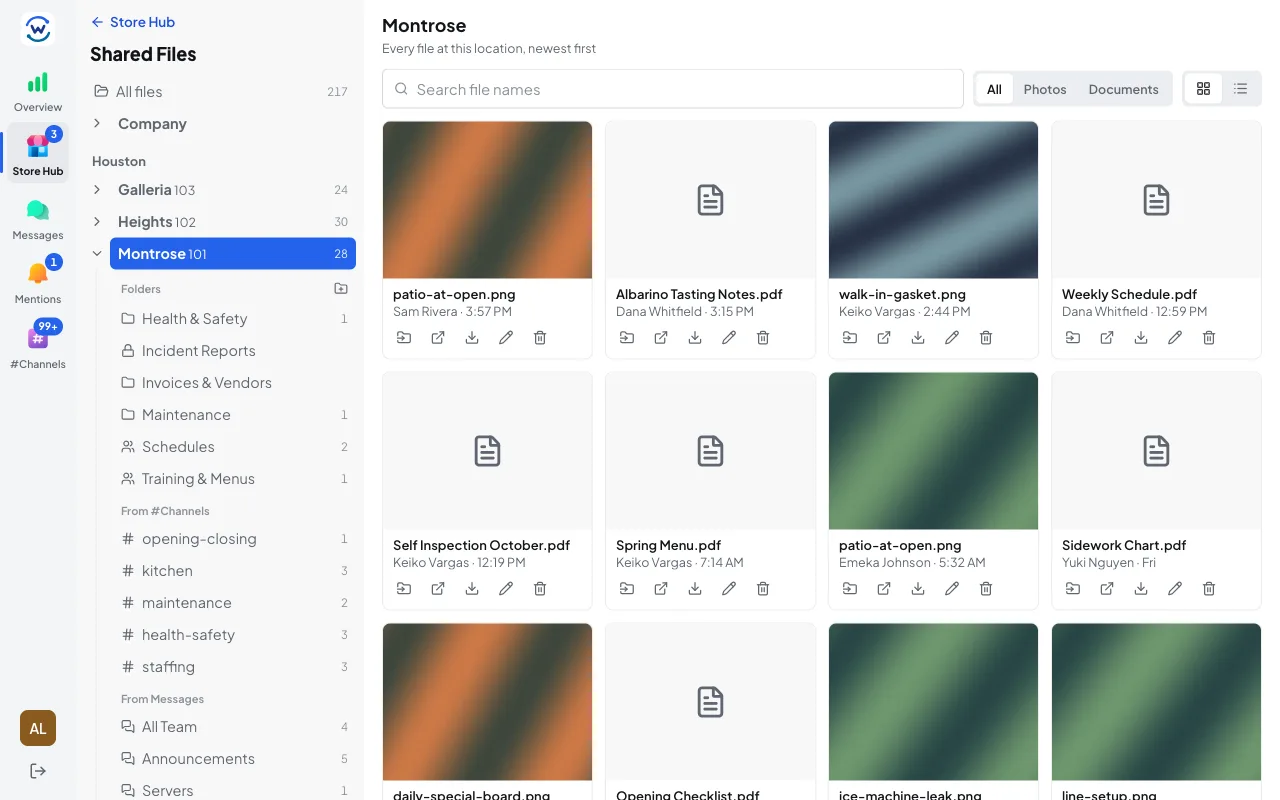
Every photo and document shared in your conversations shows up here automatically, plus folders managers keep for checklists, training guides, invoices and incident reports.
- In Store Hub, choose Shared Files.
- On the left, choose All files, Company, or a store. Open a store to see its Folders, files From #channels and From messages.
- Use Search file names, the All / Photos / Documents filter, and the grid or list view buttons.
- Choose a photo to see it full size, or a document to open it.
File options: rename, save to a folder, download
Each file has small buttons under its name.
| Option | What it does | Who |
|---|---|---|
| Save to folder | Files a photo or document from a chat into a folder, so it's easy to find later. It stays in the chat too. | Managers and up |
| Show in chat | Jumps to the message the file was sent with. | Everyone |
| Download | Saves the file to your device. | Everyone |
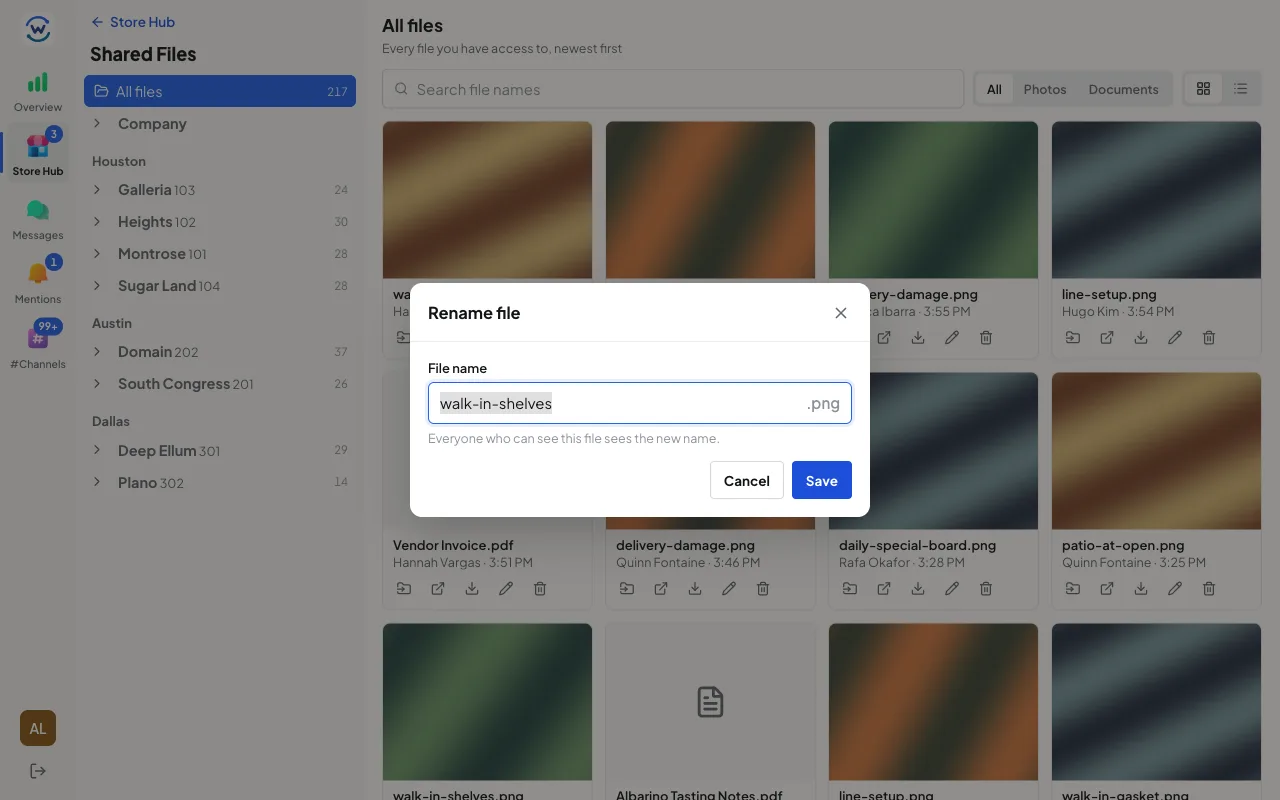
| Rename (pencil) | Changes the file's name for everyone who can see it. The ending (.pdf, .jpg) stays, so the file keeps its type. | The uploader, managers (their stores), directors, admins |
| Remove (trash) | Removes the file. | The uploader, managers (their stores), directors, admins |
Rename a file
- Find the file in Shared Files and choose its pencil button.
- Type the new name. The file type is shown at the end and can't be changed.
- Choose Save. Renames are recorded in the activity log.
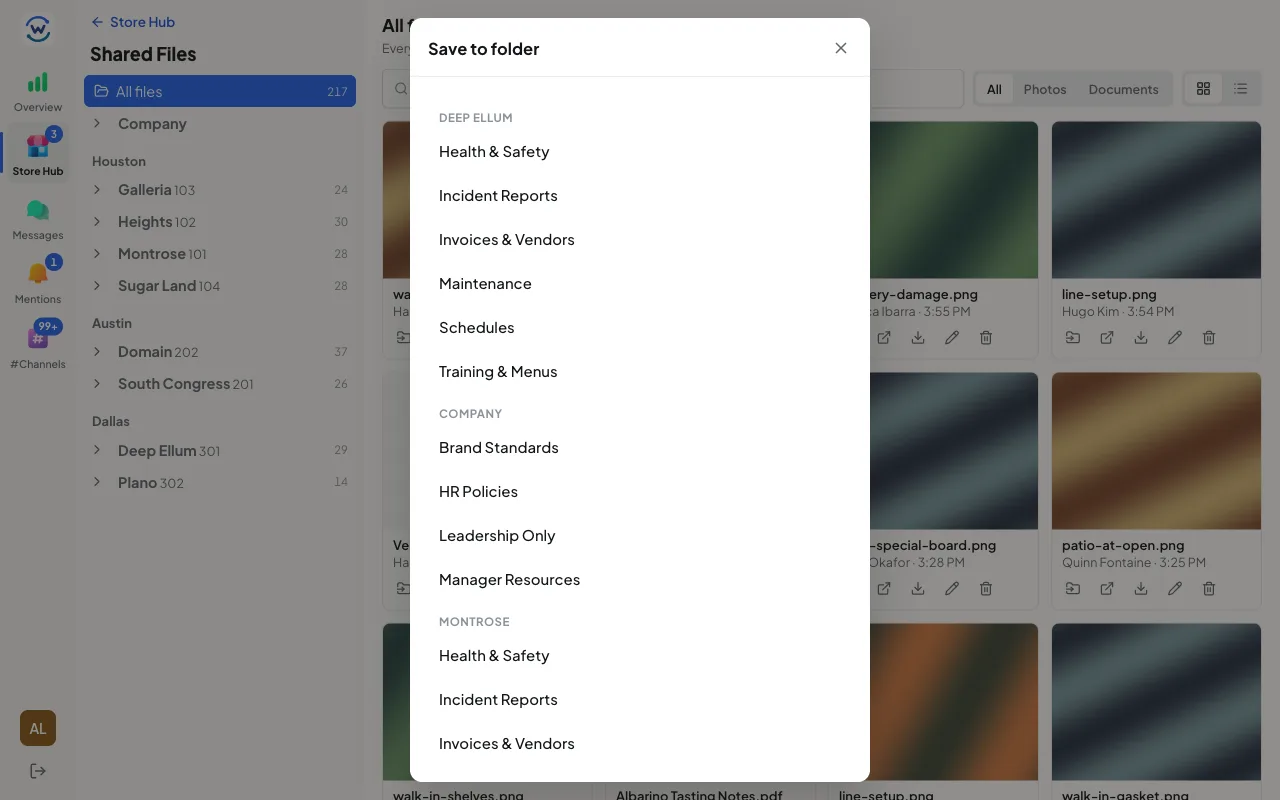
Folders
- New folder (managers and up): choose the new folder button, name it, and pick Who can see it: everyone at the store, managers only, or directors and admins only.
- Upload: open a folder and choose Upload to add files straight to it.
- Remove folder: files sent in conversations stay in their chats. Files uploaded straight to the folder must be moved first.
11. Search and feeds
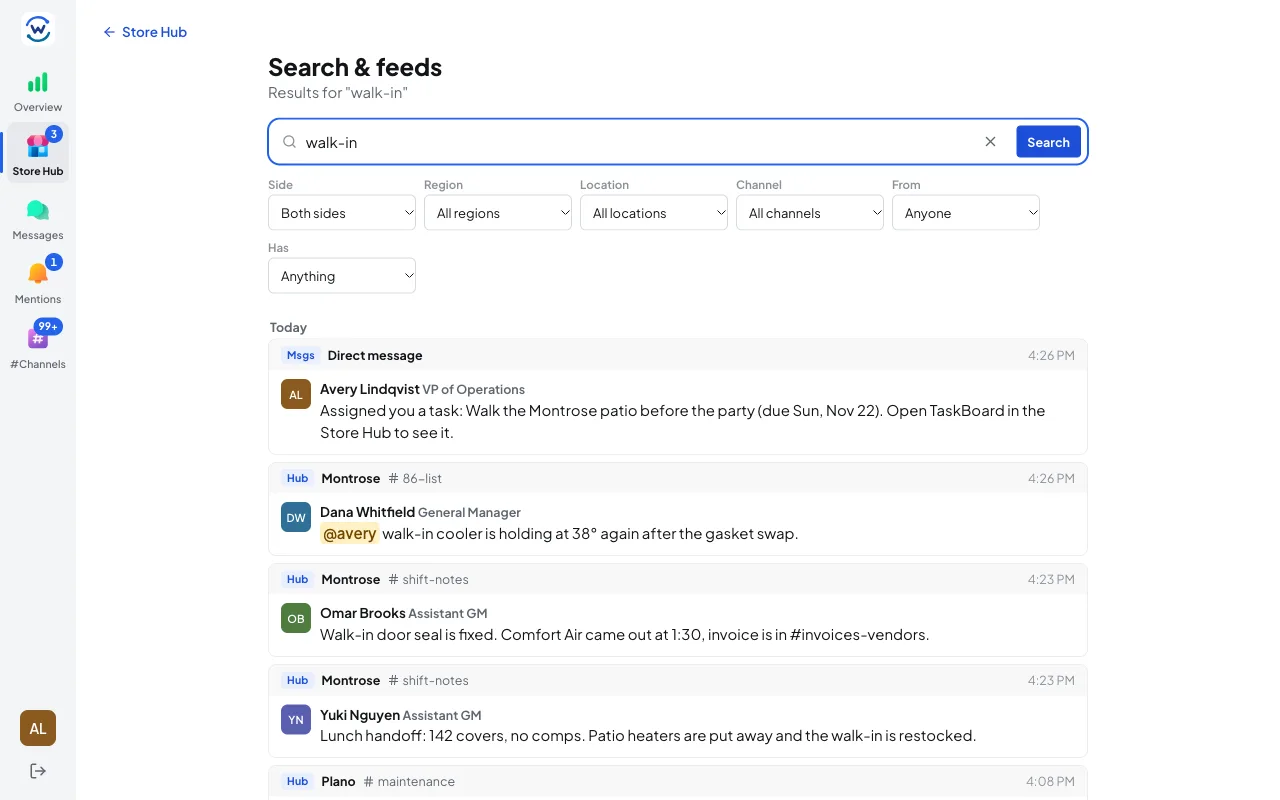
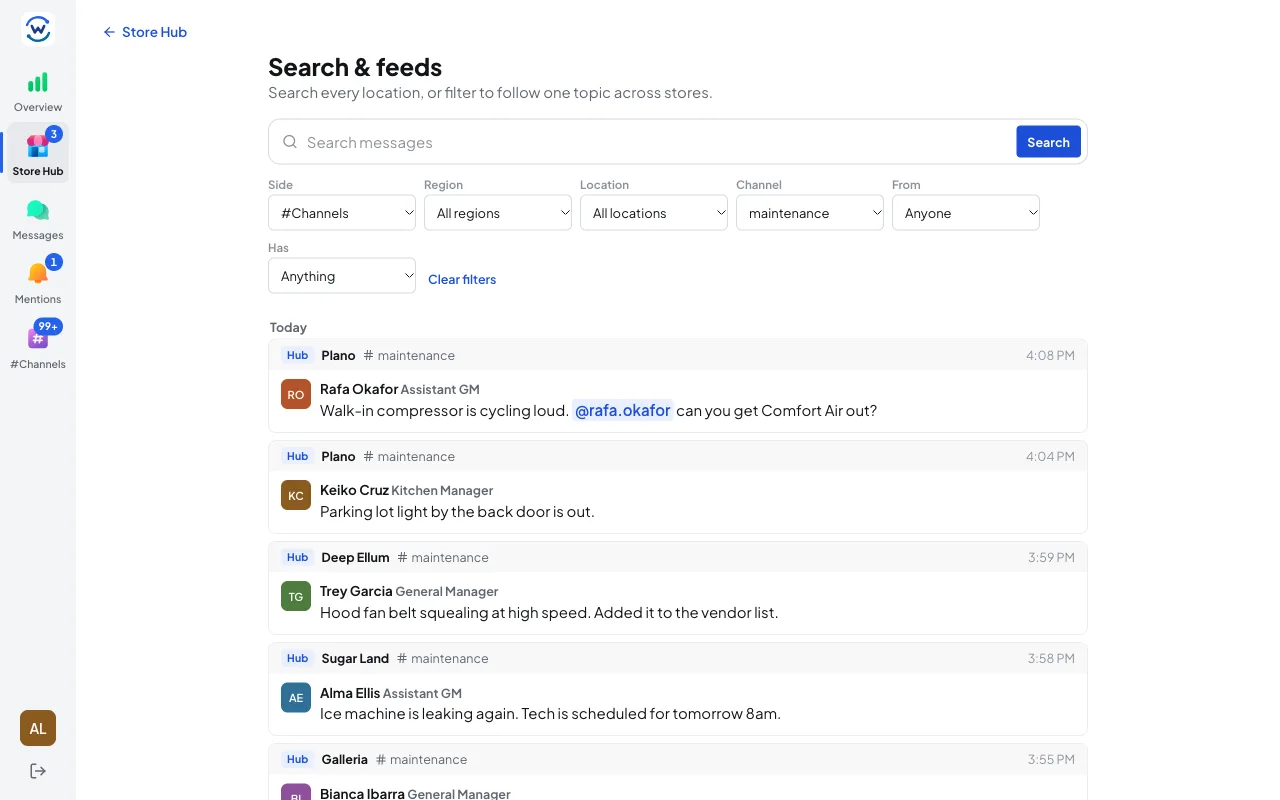
- In Store Hub, choose Search (leaders see Search & feeds).
- Type words to find and choose Search.
- Narrow it down with the filters: side (#Channels or Messages), region, location, channel, who posted it, and whether it has photos or documents.
- Choose a result to jump to it. Clear filters starts over.
12. TaskBoard
TaskBoard is where managers give tasks to themselves or each other. Tasks can be one-off, ongoing, or repeat daily, weekly or monthly. A one-off task for several people becomes a shared board you work on together.
Add a task
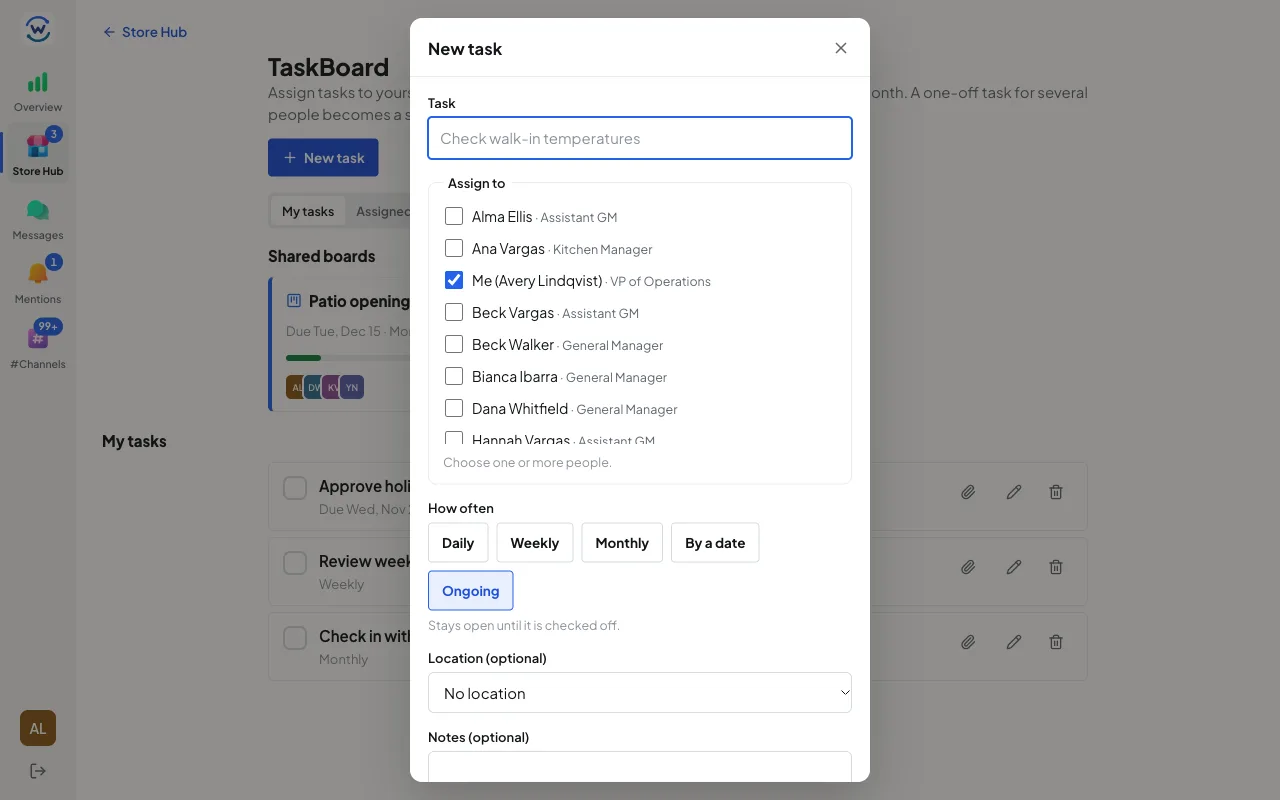
- In Store Hub, choose TaskBoard, then New task.
- Name the task and tick who it's for. Managers can pick themselves and managers at their stores; directors and admins can pick any manager and up.
- Choose how often: Daily (resets every day), Weekly (every Monday), Monthly (on the 1st), By a date (overdue after that date) or Ongoing (open until checked off).
- Add a location, notes, and photos or documents if you like. Tick Send them a text alert too to also text people who've opted in.
- Choose Add task. Each person is tagged in a direct message.
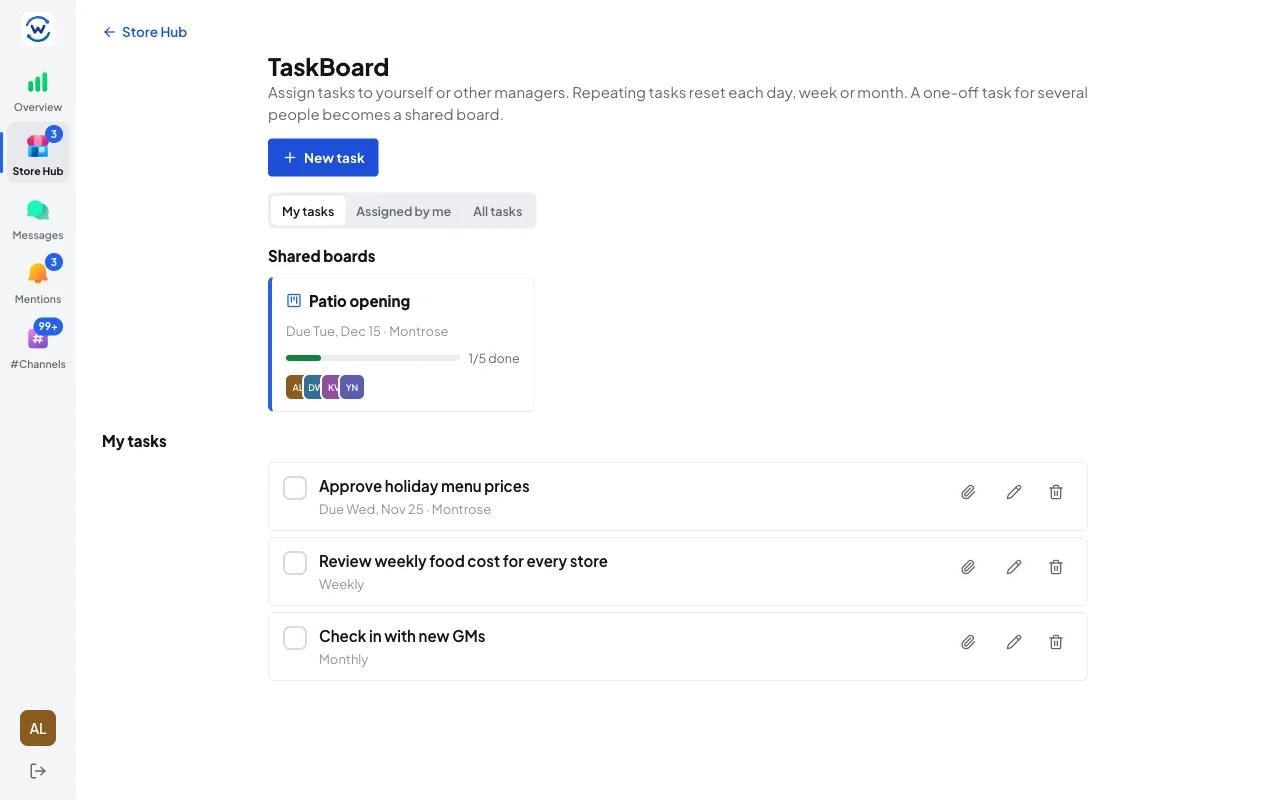
| Option | What it does | Who |
|---|---|---|
| Checkbox | Marks the task done. Repeating tasks open again the next day, week or month. | The person it's for, its maker |
| Paperclip | Adds a photo or document, like proof it's done. | Anyone on it |
| Edit (pencil) | Change the task, its schedule or who it's for. A new person is tagged. | Its maker, directors, admins |
| Remove (trash) | Removes the task for everyone. | Its maker, directors, admins |
| My tasks / Assigned by me / All tasks | Switch views. All tasks is every task in the company. | All tasks: directors, admins |
| Show done | Shows finished tasks below the list. | Everyone here |
Shared boards
- Choose New task, tick two or more people, and choose By a date or Ongoing. The button changes to Create shared board.
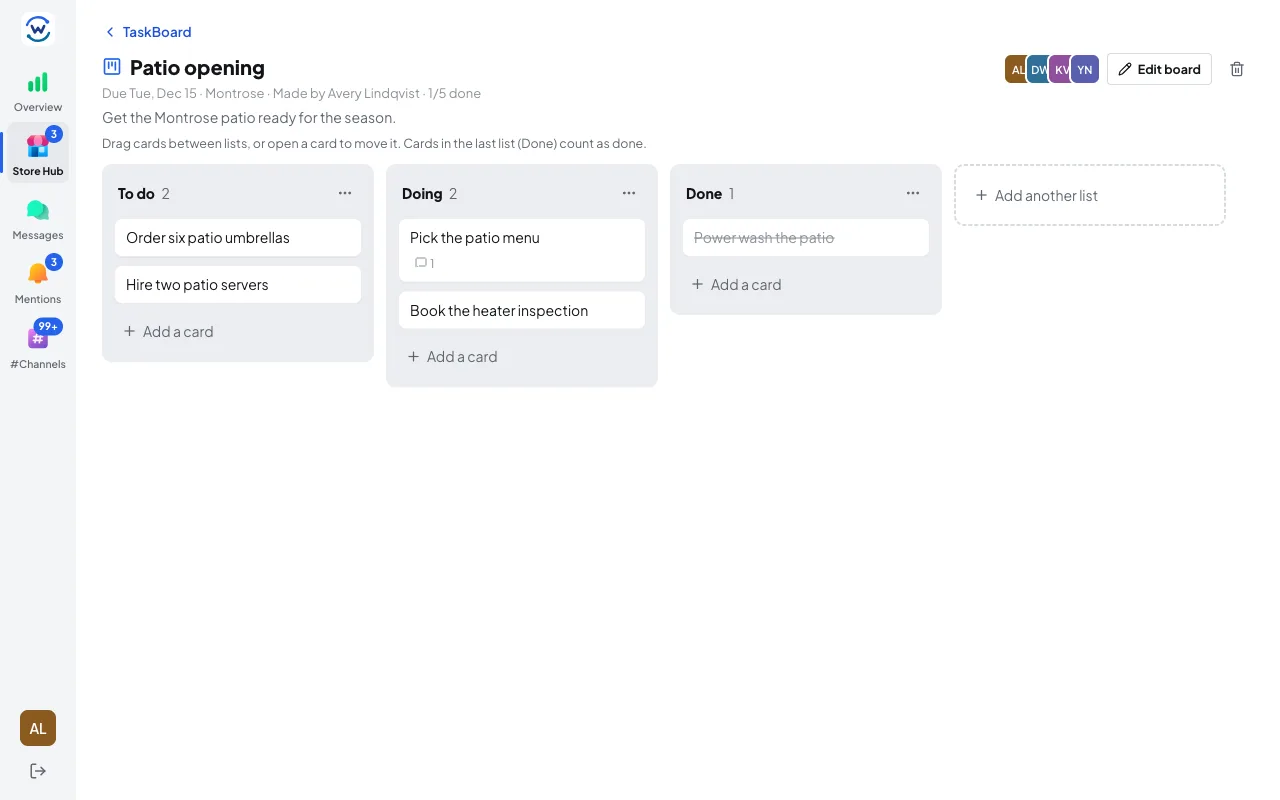
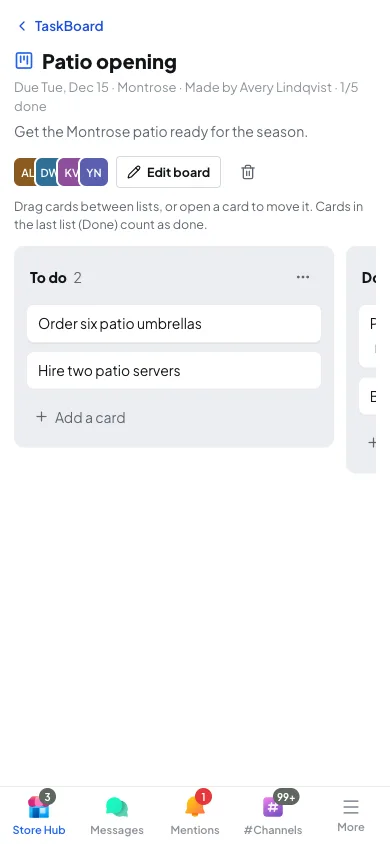
- The board opens with three lists: To do, Doing and Done. Choose Add a card under a list for each piece of work.
- Drag cards from list to list as work moves along. Cards in the last list count as done, and the board's tile shows its progress.
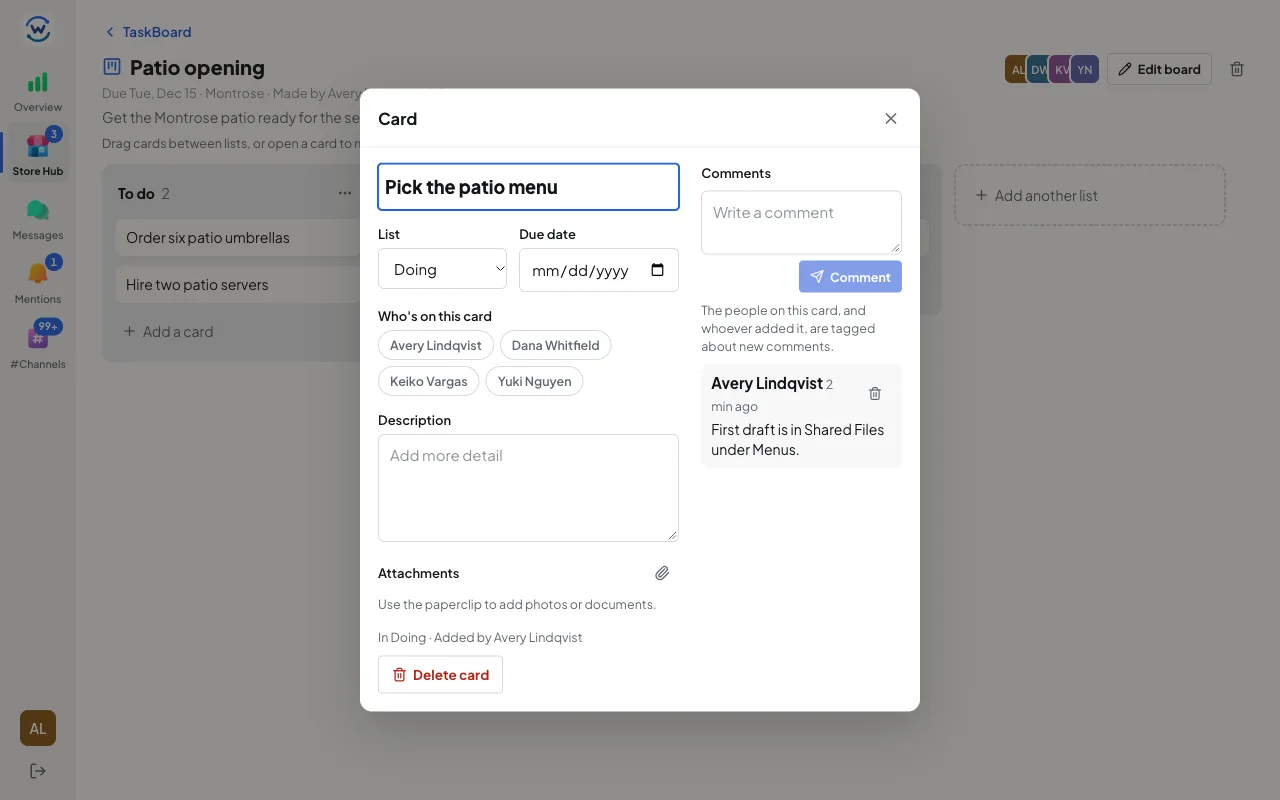
| Option | What it does | Who |
|---|---|---|
| Card name | Choose the name at the top to change it. | Anyone on the board |
| List | Moves the card without dragging, which is handy on a phone. | Anyone on the board |
| Due date | Shows on the card, and turns red when overdue. The × clears it. | Anyone on the board |
| Who's on this card | Tap names to add or take people off. New people are tagged, and it counts toward their TaskBoard badge. | Anyone on the board |
| Description | More detail. Saves when you click away. | Anyone on the board |
| Attachments | The paperclip adds photos or documents. | Anyone on the board |
| Comments | A conversation on the card. The people on it, and whoever added it, are tagged. | Anyone on the board |
| Delete card | Removes the card, its comments and attachments. | Anyone on the board |
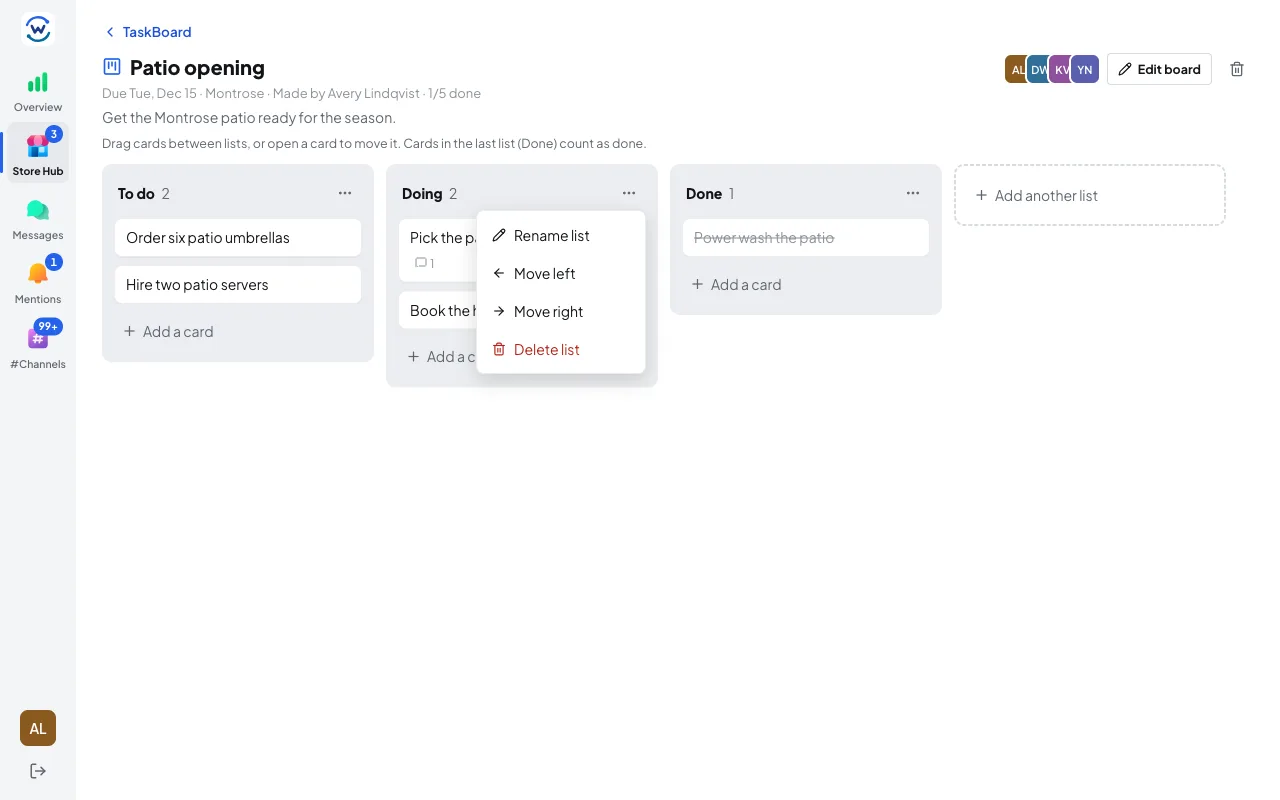
| Option | What it does | Who |
|---|---|---|
| Rename list | From the list's ⋯ button, or double-click the list name. | Anyone on the board |
| Move left / right | Changes the order of lists. The last list is where finished cards go. | Anyone on the board |
| Delete list | Move or delete its cards first. | Anyone on the board |
| Add another list | At the end of the board, up to 12 lists. | Anyone on the board |
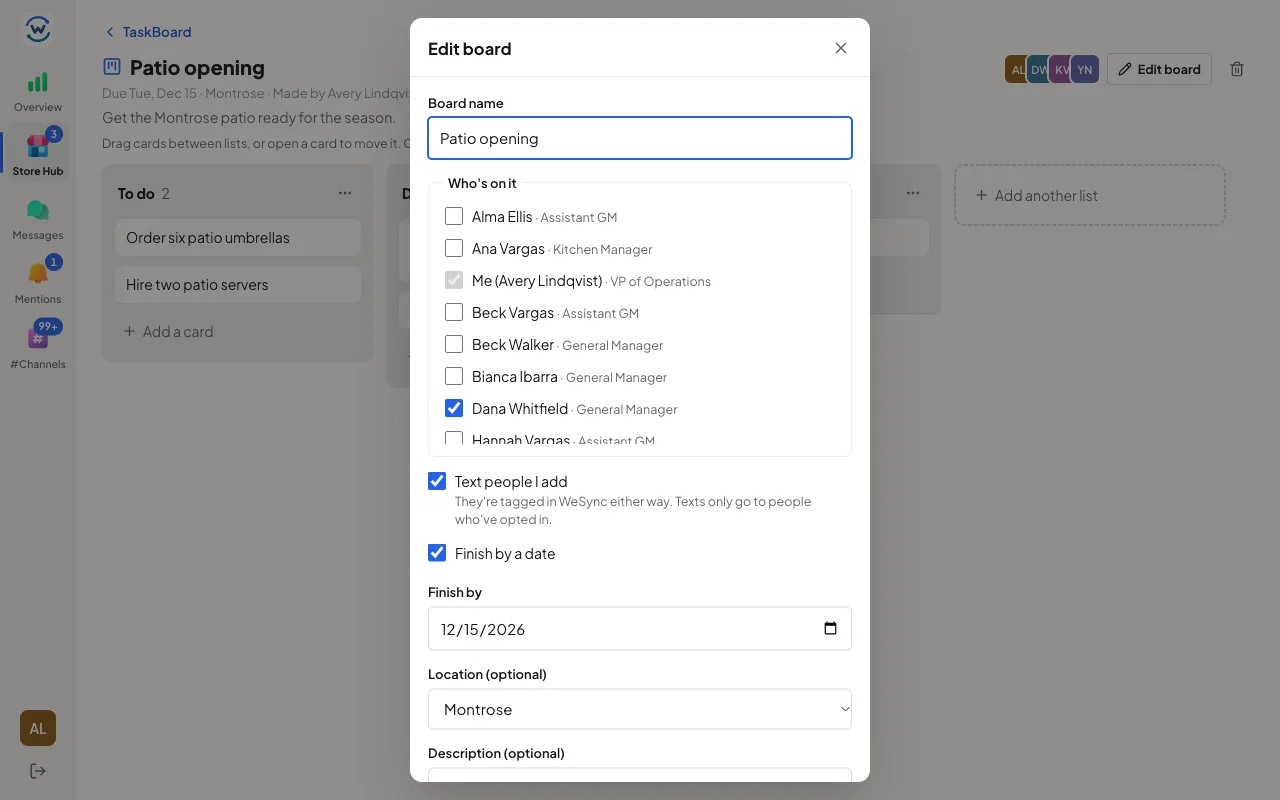
| Edit board | Rename it, change who's on it, its finish date, location and description. | Its maker, directors, admins |
| Delete board | Trash button at the top right. Deletes everything on it. | Its maker, directors, admins |
13. To-dos
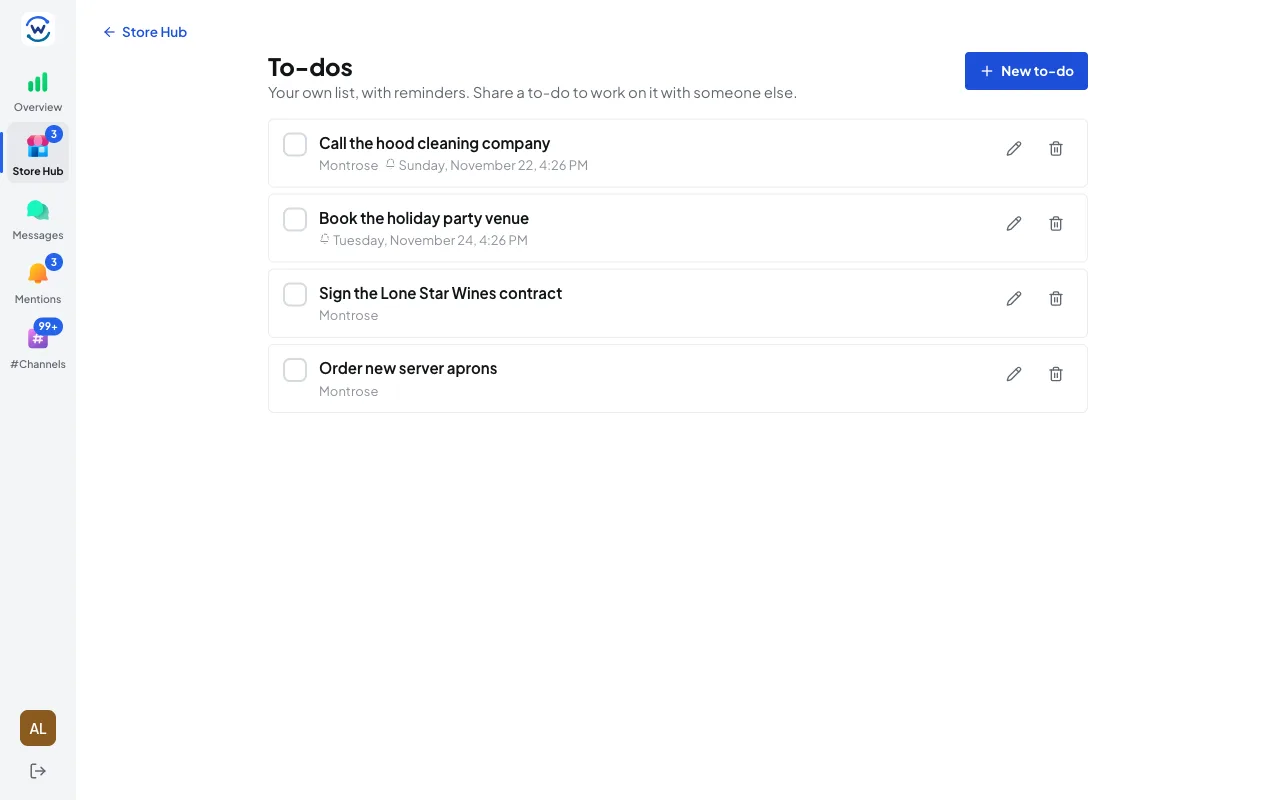
Your own private list, with reminders. Share a to-do when you want to work on it with someone else.
- In Store Hub, choose To-dos, then New to-do.
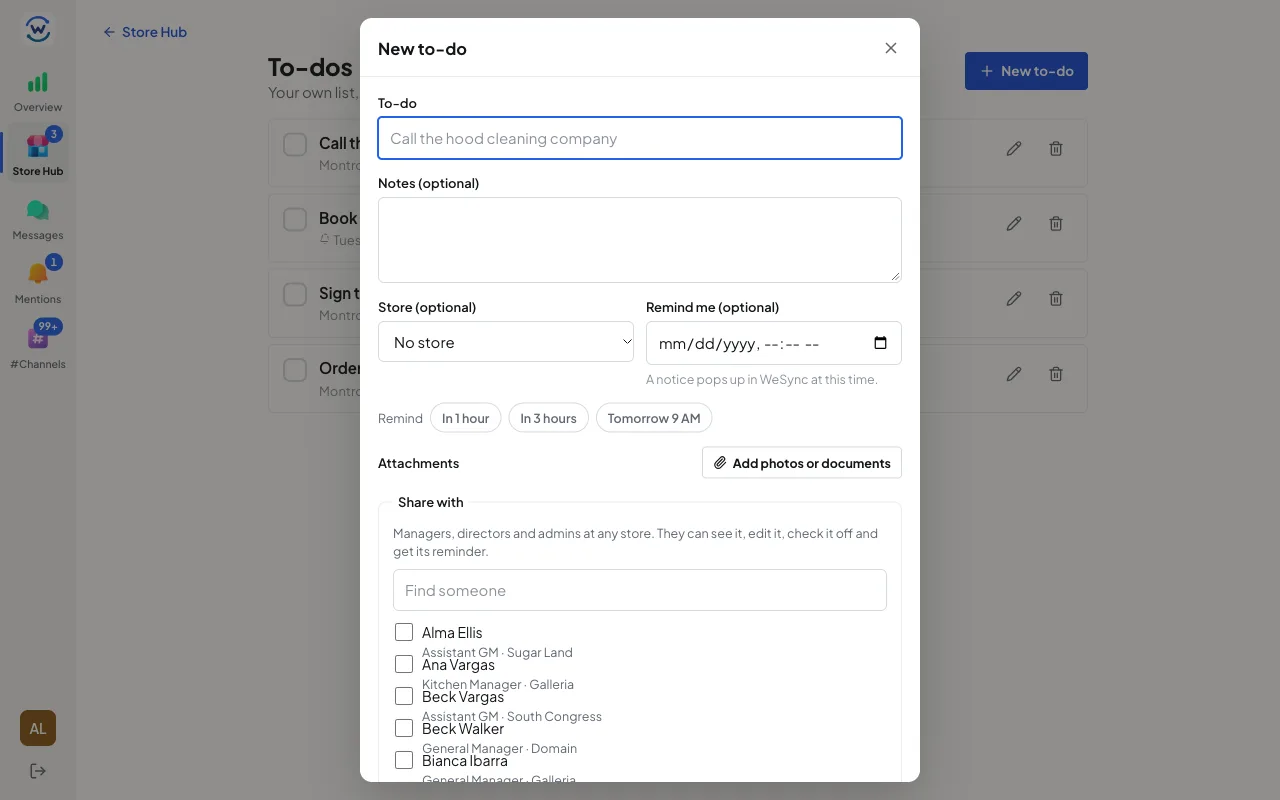
- Write what needs doing, and add notes and a store if you like.
- Remind me: pick a date and time, or a shortcut like In 1 hour or Tomorrow 9 AM. When it's time, the To-dos icon shows a red number until you look.
- Share with: tick people to share it with. Everyone on it can edit it and check it off. Only you can delete it or change who it's shared with.
- Add photos or documents, then choose Add to-do.
14. People and your team
Add a person
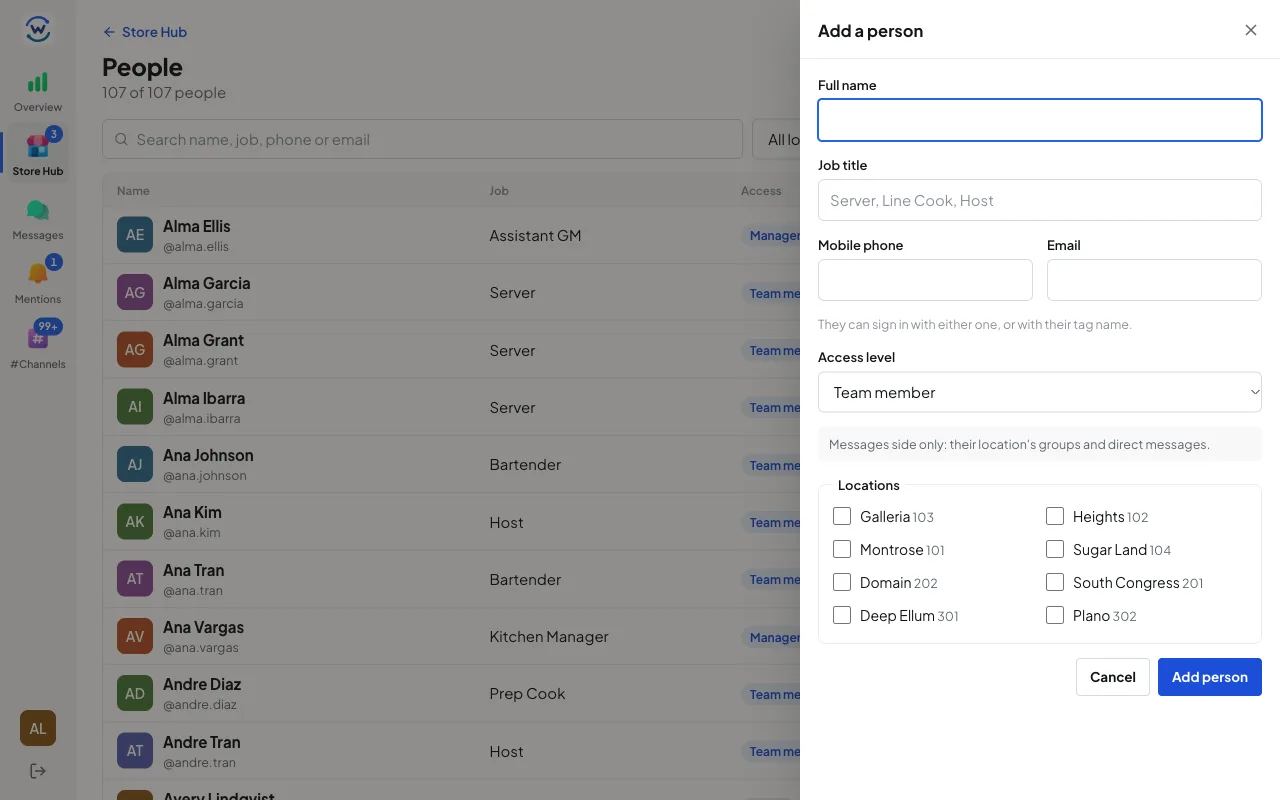
- In Store Hub, choose People (managers see My team), then Add a person.
- Enter their name and job title. Add a mobile number or email so they can sign in with it; both are optional, because they can always use their tag name.
- Choose their Access level (team member, manager, director or admin), the Locations they work at, and any Team groups (like Servers or Bar).
- Choose Add person. If you added an email, they get a welcome email with a link to choose their own password. WeSync also shows a one-time password; give it to them if they have no email or the email doesn't reach them.
Add several people at once
- On People, choose Add several people. A new company sees an Add your team prompt with the same button.
- Fill in a row for each person: name, email or mobile, job title and access. Or paste a list from a spreadsheet into Paste a list.
- Choose their locations, then add them. Everyone with an email gets a welcome email, and WeSync shows each person's sign-in details, with Copy all.
Edit a person
| Option | What it does | Who |
|---|---|---|
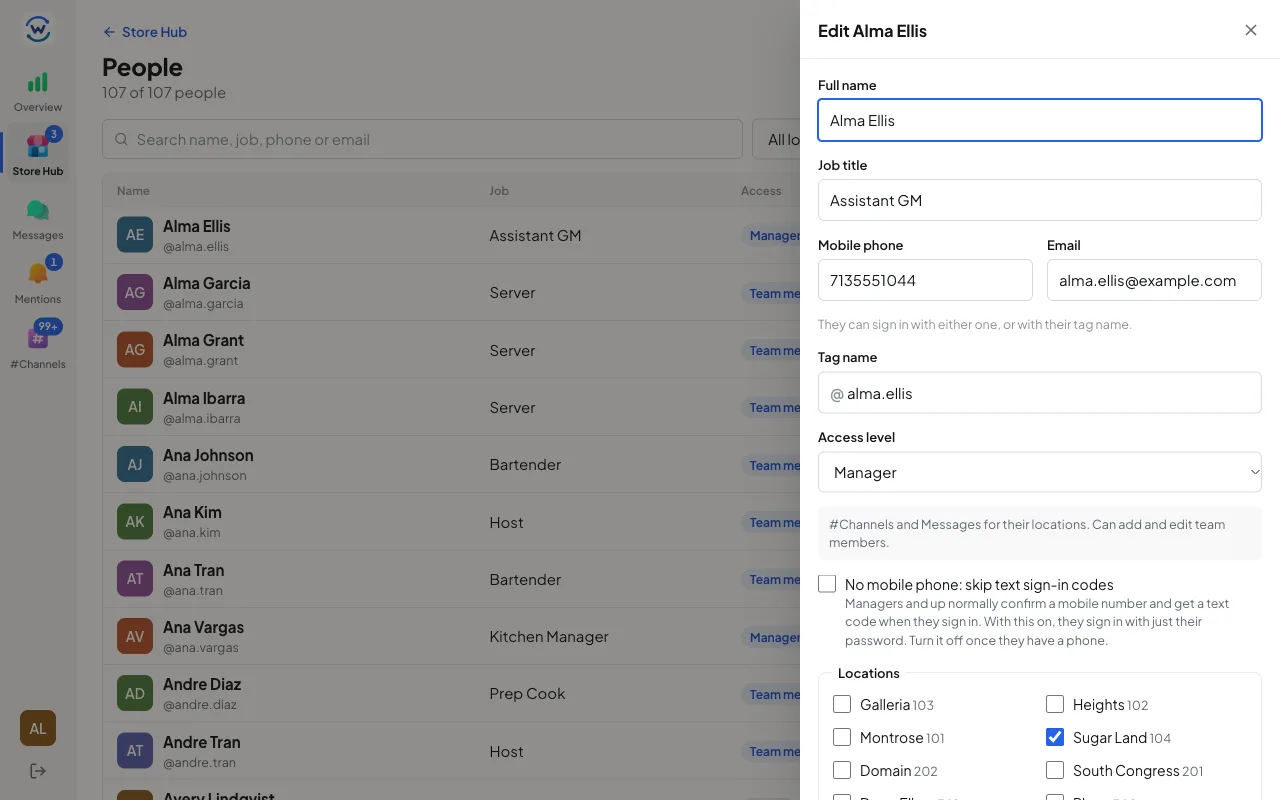
| Details | Name, job title, mobile, email and tag name. | Their managers |
| Access level | Managers can add and edit team members; directors manage managers too; admins manage everyone. | Their managers |
| Locations, team groups | Which stores they work at, and which team groups they're in. | Their managers |
| No mobile phone: skip text sign-in codes | For a manager or above without a mobile phone: they sign in with just their password. | Directors, admins |
| Email a password link | Emails them a fresh link to choose their own password, lasting 7 days. Any earlier link stops working. | Their managers |
| Reset password | Signs them out and gives a new one-time password. | Their managers |
| Deactivate / Reactivate | Deactivating signs them out everywhere right away. Their past messages stay. | Their managers |
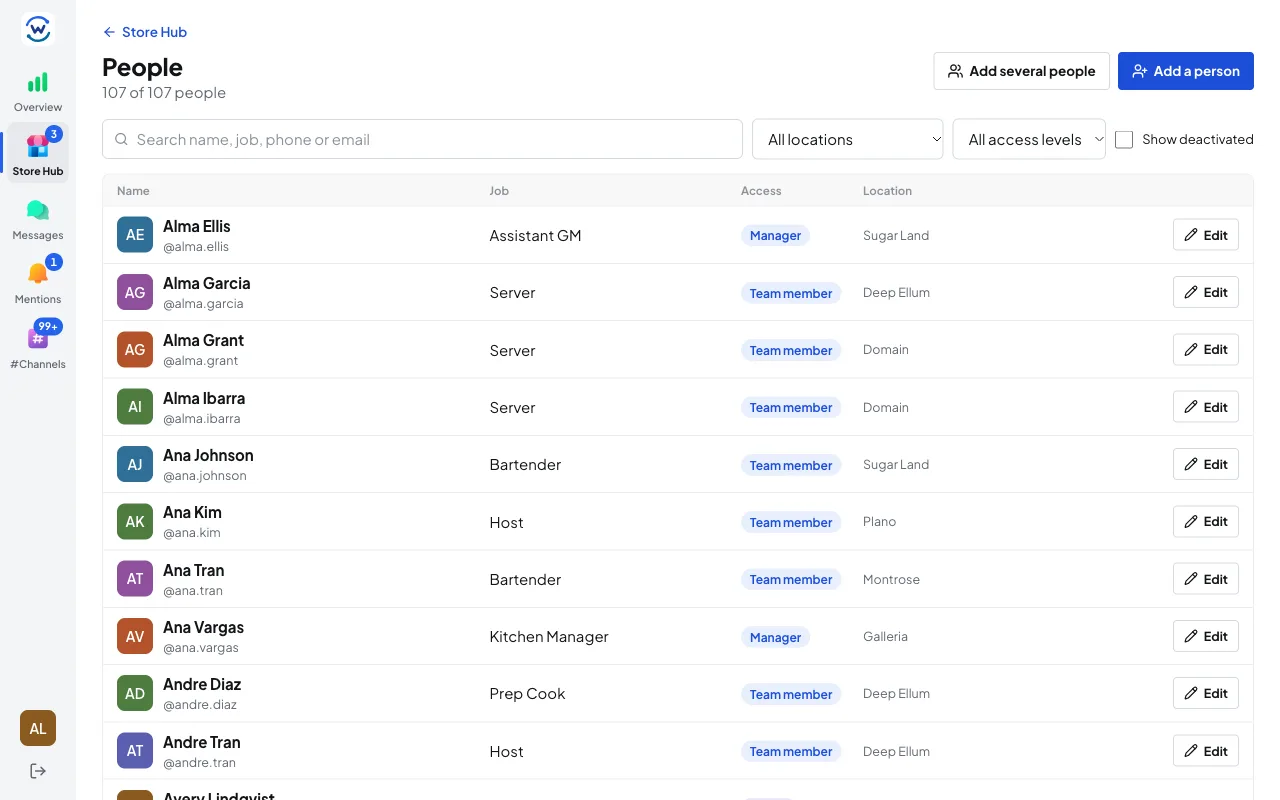
On the People list, filter by location and access level, search by name, job, phone or email, and tick Show deactivated to see former staff.
15. For directors and admins
Overview
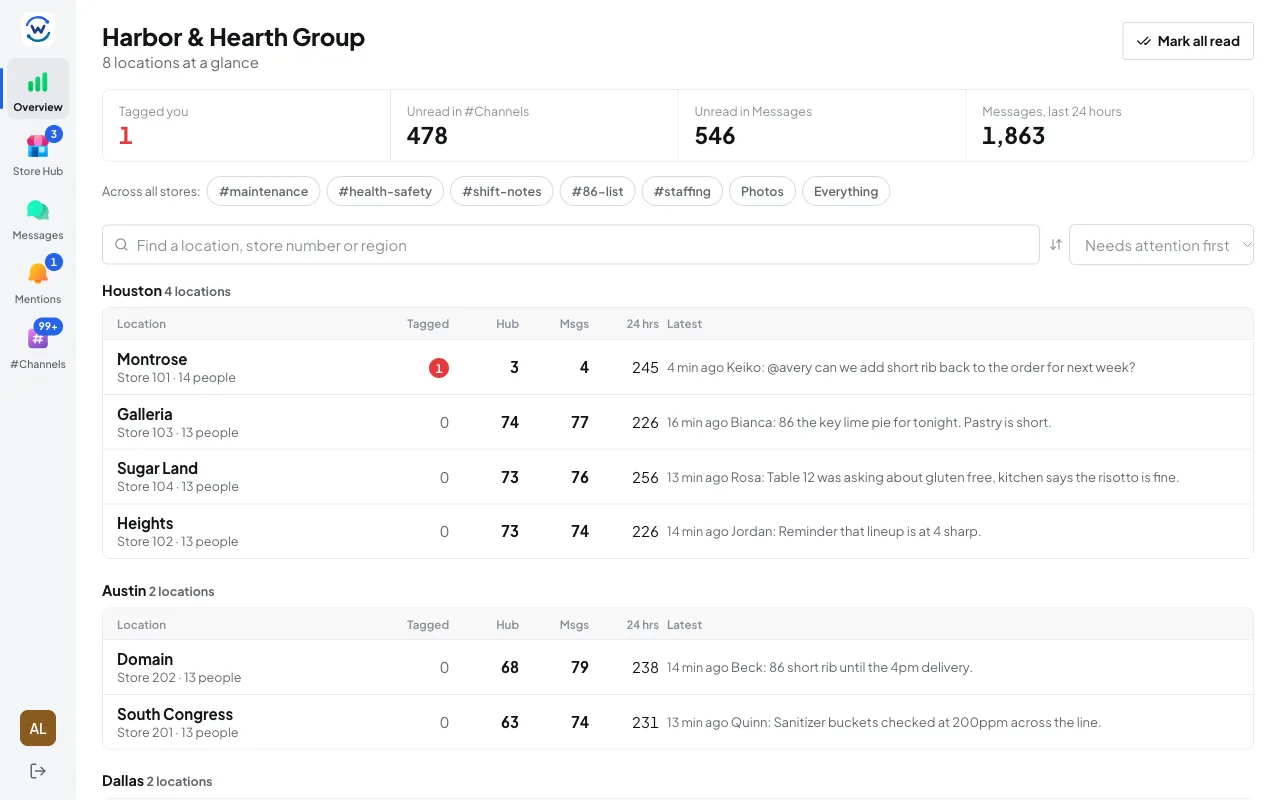
- Choose Overview on the left to see every store, grouped by region, with tags, unread counts, activity in the last 24 hours and each store's latest message.
- Sort by Needs attention first, or search for a store, store number or region.
- Use the topic buttons across the top (like #maintenance or Photos) to read one topic across every store.
- Mark all read clears every count.
Locations and regions (admins)
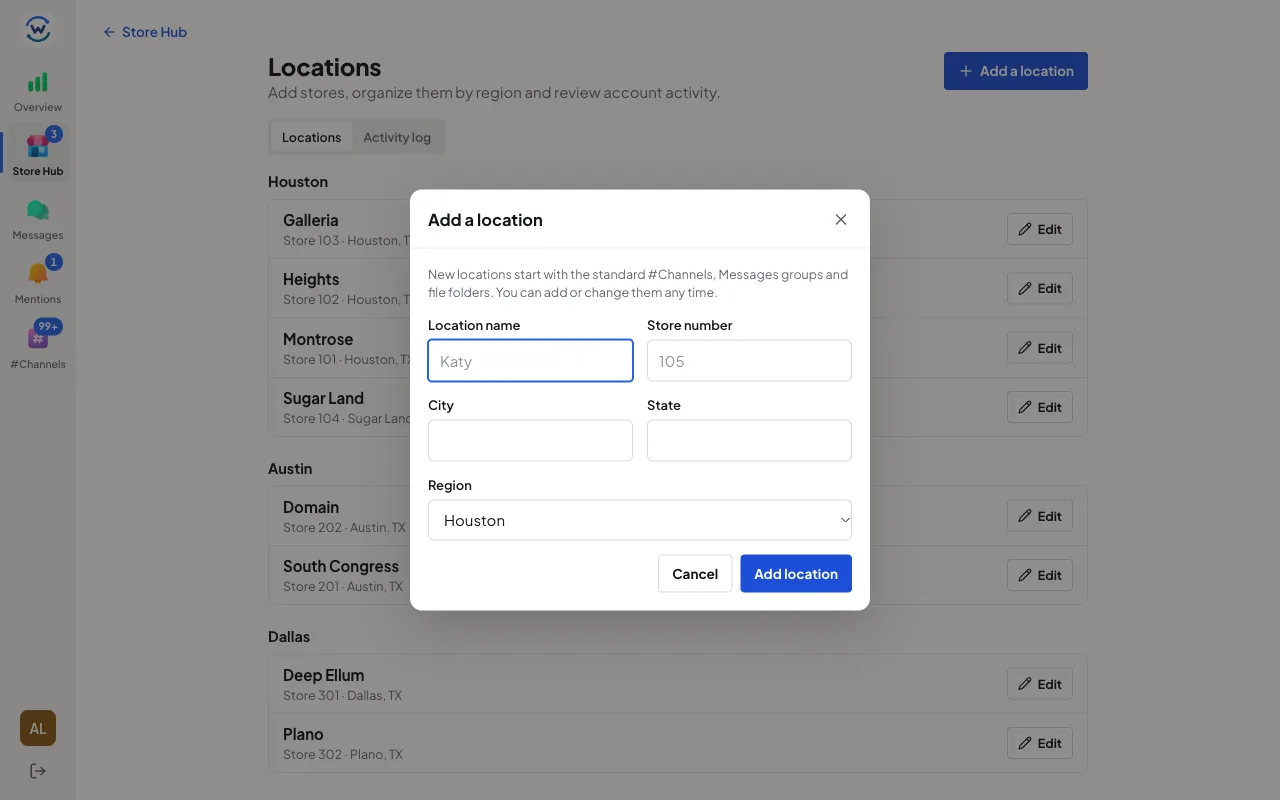
- In Store Hub, choose Locations, then Add a location.
- Enter the store name, store number, city, state and region. Pick a region, or type a new one.
- New stores start with the standard #Channels, Messages groups and file folders, which you can change.
- Choose Edit on a store to change it, or Archive location when it closes. Archiving lowers your subscription automatically.
Activity log
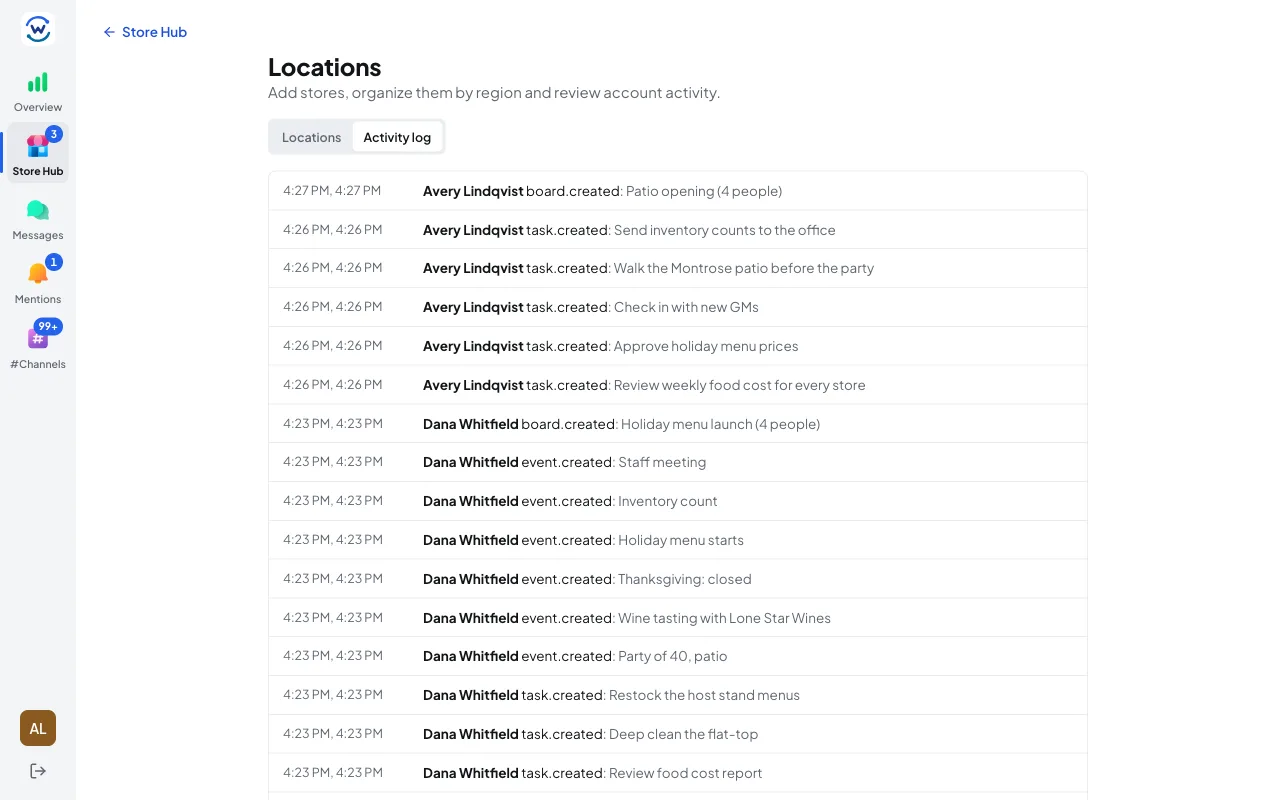
A record of important changes: people added or deactivated, roles changed, messages removed by managers, files renamed or filed, tasks and boards made, and apps added, changed or removed. Directors open it from Activity log in Store Hub; admins find it as a tab on Locations.
16. Profile, alerts and settings
Your profile
- Choose your picture at the bottom of the left bar.
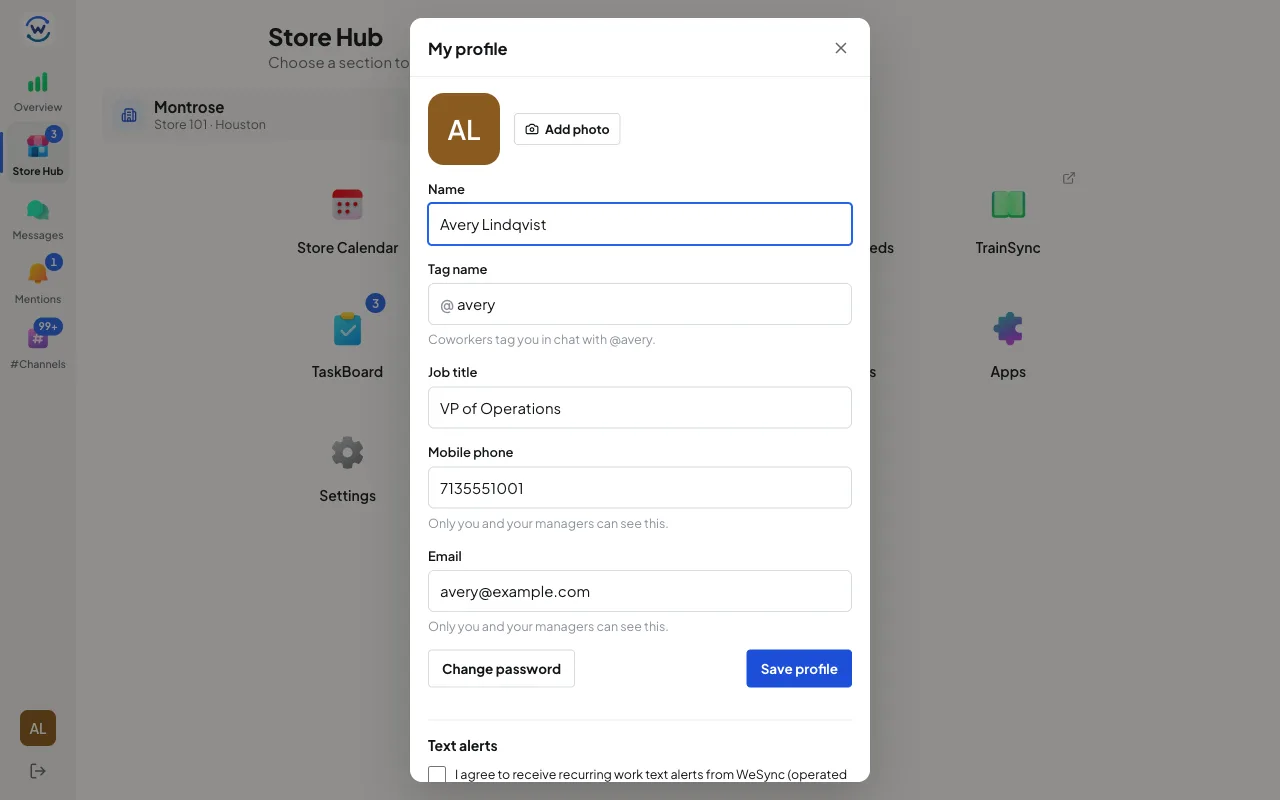
- Add a photo, and update your name, tag name, job title, mobile number and email. Only you and your managers can see your phone and email.
- Choose Change password to pick a new one, then Save profile.
| Option | What it does | Who |
|---|---|---|
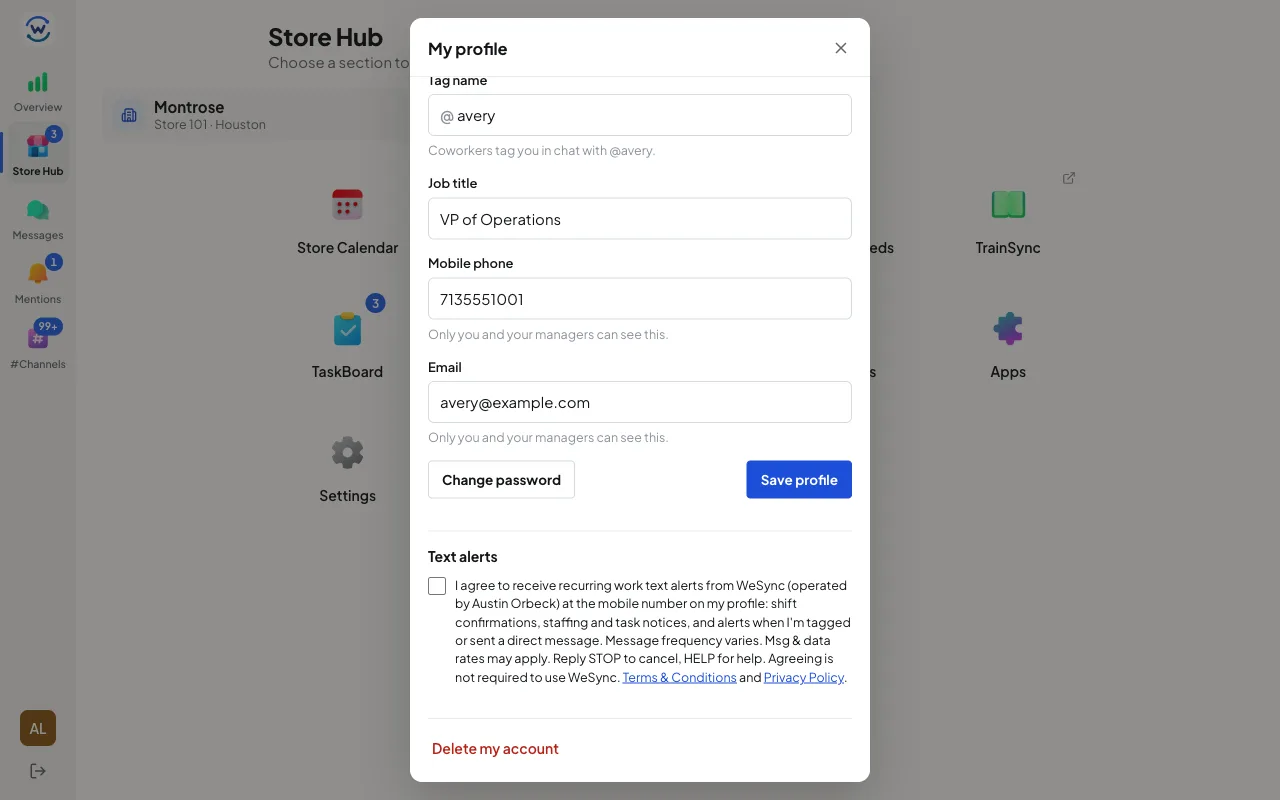
| Text alerts | Agree to get texts, then pick which ones: shift confirmations you need to answer, tags, direct messages when you're away, and tasks. Reply STOP to any text to stop them all. | Everyone |
| Two-step sign-in | A texted code confirms each new device. If the text doesn't come, you can have the code emailed instead. Always on for managers and up; team members can turn it on. | Everyone |
| Forget all | Signs out the devices WeSync remembers, so each needs a code again. | Everyone |
Settings
| Setting | What it does | Who |
|---|---|---|
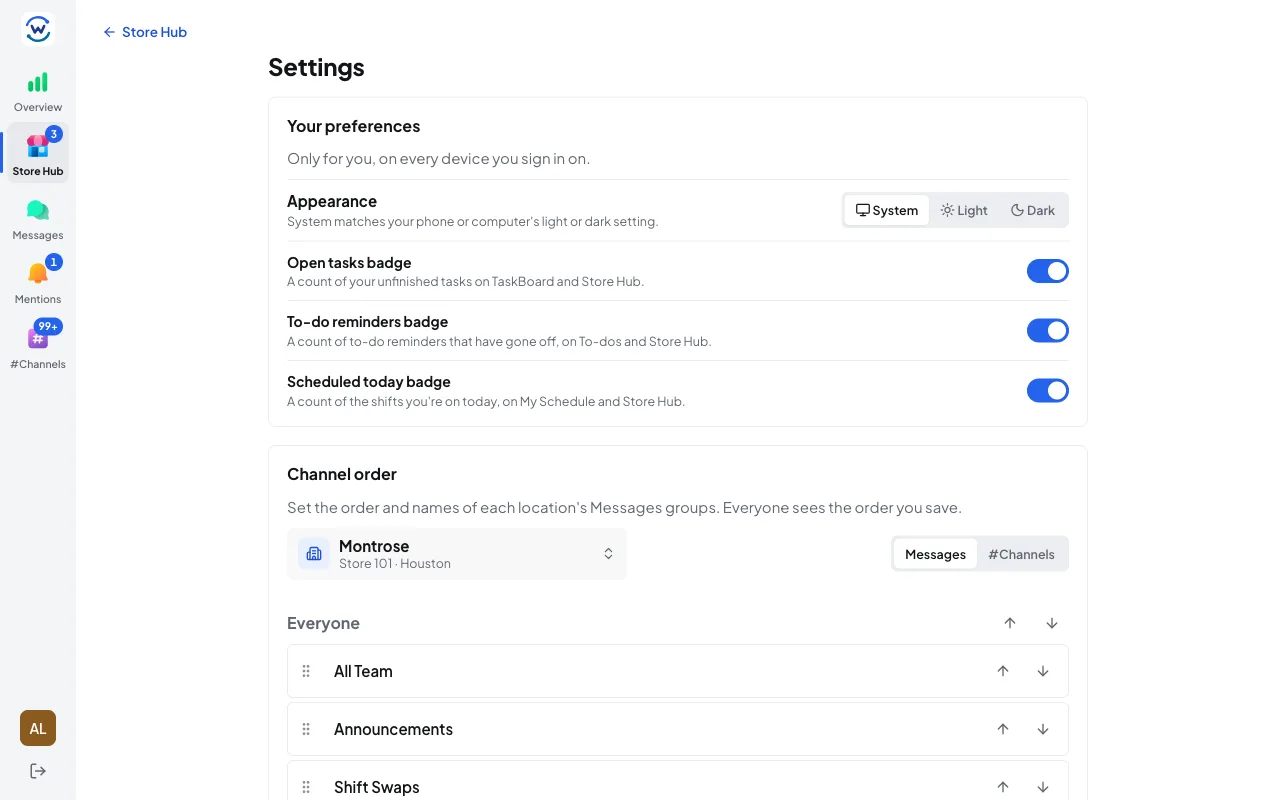
| Appearance | Light, Dark, or System to match your device. | Everyone |
| Badges | Turn the red numbers on or off for open tasks, to-do reminders and today's shifts. | Everyone |
| Channel order | Pick a store and Messages or #Channels, then drag (or use the arrows) to set the order, and rename groups. Choose Save order. Everyone sees the order you save. | Managers and up |
17. Subscription and billing
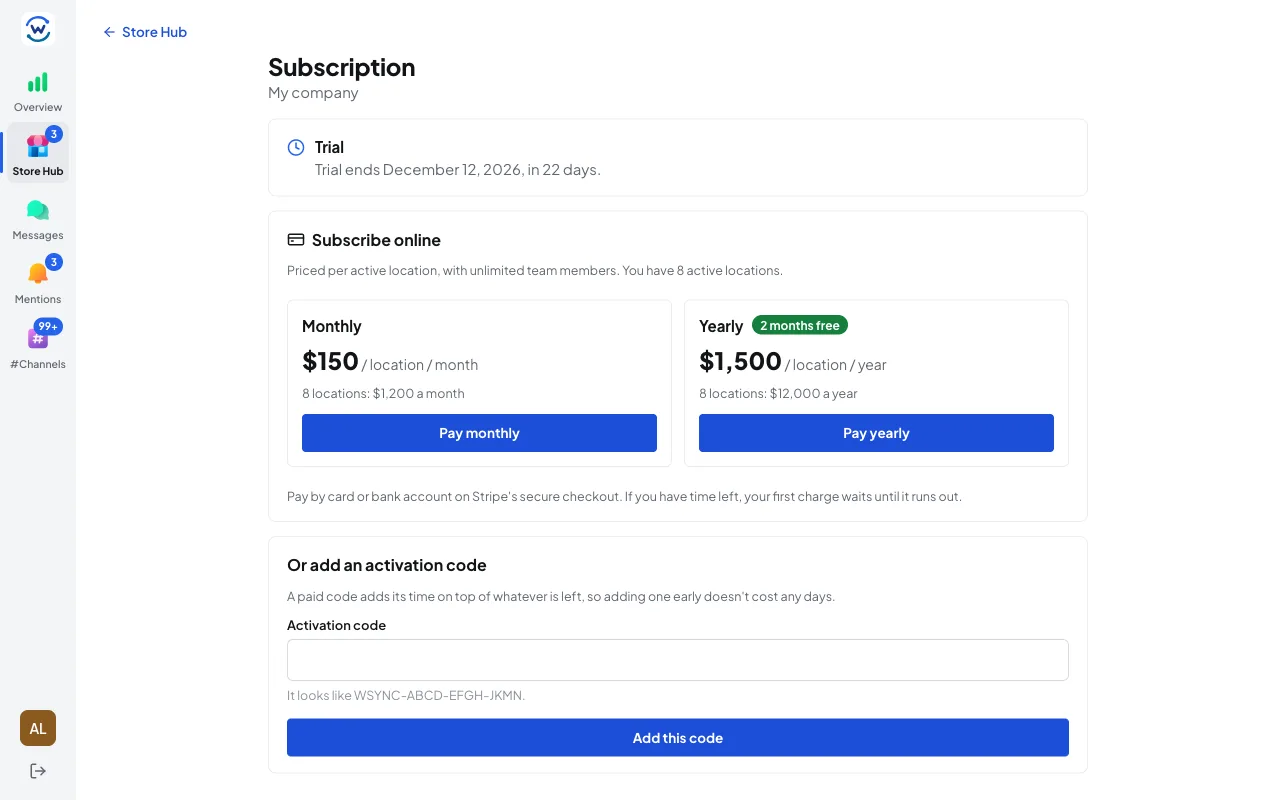
WeSync is priced per active location, with unlimited team members: $150 per location per month, or $1,500 per location per year (two months free).
- In Store Hub, choose Subscription to see your plan and how long your access runs.
- Choose Pay monthly or Pay yearly. You pay by card or bank account on Stripe's secure checkout page; WeSync never sees your card or bank details.
- If you're in a trial or have time left, the first charge waits until it runs out, so no days are lost.
- Once you subscribe, choose Manage billing to change your card or bank account, download invoices, update your billing address, or cancel. Cancelling keeps WeSync active until the end of the period you paid for.
| Good to know | Details | Who |
|---|---|---|
| Adding a store | Adds a prorated charge to your next bill. Archiving a store lowers it. | Admins |
| A payment fails | You'll see a note on Subscription to update your payment method. Stripe tries again, and WeSync keeps working until the end of what you paid for. | Admins |
| Activation codes | If we gave you a code, enter it under Add an activation code. It adds time on top of what's left. | Admins |
| Reminders | Admins see a banner 7 days before access ends. | Admins |
18. On your phone
WeSync works in your phone's web browser, with nothing to download. The bar moves to the bottom of the screen.
- Open wesync.info in Safari or Chrome and sign in.
- Add it to your home screen. On iPhone, tap Share, then Add to Home Screen. On Android, tap the menu, then Add to Home screen.
- Use the bottom bar to switch between Store Hub, Messages, Mentions and #Channels. More holds the rest.
- Press and hold a message to see its options. On a shared board, swipe sideways between lists, and open a card to move it.
19. Who can do what
| Access level | What they can do |
|---|---|
| Team member | Messages for their store (groups and direct messages), Store Calendar, My Schedule, Shared Files and Search. Answers shift confirmations. Edits and removes their own messages, and renames or removes files they uploaded. |
| Manager | Everything a team member can do, plus #Channels for their stores, shift confirmations, pinning, @everyone, TaskBoard, to-dos, folders, renaming and removing their stores' files, store groups and channels, and adding and editing their team. |
| Director | Every store on both sides, Overview, all tasks and boards, managing managers and team members, waiving text codes for someone without a phone, and the activity log. |
| Admin | Everything, including locations, regions, other admins, apps like Claude, and the subscription. |
20. Common questions
- Can my manager read my direct messages?
- No. Direct messages are only seen by the people in them.
- If I delete a direct message, does the other person lose it?
- No. Deleting only removes it from your view. The other person keeps their copy.
- Can I rename a file someone sent in a chat?
- If you're a manager at that store (or a director or admin), yes, from Shared Files. Otherwise only the person who sent it can.
- I'm not getting text alerts.
- Open your profile and check that your mobile number is saved and that you've agreed to text alerts. If you replied STOP to a text, you can turn alerts back on there.
- I can't see #Channels or TaskBoard.
- Those are for managers and up. Ask your manager if you think your access level should change.
- I didn't get my welcome email or code.
- Check spam or junk for admin@wesync.info, and that the email on your profile is right. For a code, choose Email me the code instead, or start again for a new one. For a welcome link, ask your manager to choose Email a password link on your profile, or to give you a one-time password.
- Someone left the team. How do I remove them?
- In People, choose Edit on their name, then Deactivate. They're signed out right away, and their past messages stay in the conversation history.
- Does Claude read all our chats?
- No. Claude only sees the thread someone mentions it in, and only when they mention it. That thread is sent to Anthropic to write the answer. If you mention Claude in a direct message, that conversation is sent too.
- Who pays for Claude?
- Your company does, directly to Anthropic, through the API key your admin added. WeSync doesn't charge extra for it.
- How do I get my company set up?
- Start with the free demo. When you're ready, contact us for an activation code to start your own company, then subscribe from Store Hub → Subscription.